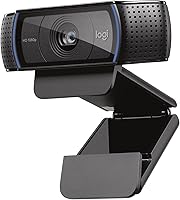
Logitech MX Brio vs Brio 4K: What Is Different? (November 2026)
The Logitech MX Brio is the better webcam for most people, because its larger sensor and AI light handling hold up in dim rooms. The Brio Ultra 4K still wins for Windows Hello login and for framing a wider room.
On this page (6 sections)
The Logitech MX Brio is the better webcam for most people, because its larger sensor and AI light handling hold up in dim rooms. The Brio Ultra 4K still wins for Windows Hello login and for framing a wider room.
These two Logitech models look similar at a glance. Both record 4K, both clip to a monitor and both carry a privacy cover.
The differences sit in the sensor, the light processing, the mount and the way each one handles a messy room.


Logitech MX Brio vs Brio 4K: what actually changed?
The MX Brio is the newer design with a bigger sensor and smarter light handling. The Brio Ultra 4K keeps the older RightLight 3 system and adds Windows Hello.
Logitech says the MX Brio has its most advanced webcam sensor yet, with 70% larger pixels than the older design. Larger pixels gather more light per point, which is why the MX Brio holds detail in a dim home office.
Logitech pairs that sensor with AI tuning. The company claims 2x better face visibility and finer detail in difficult light.
Auto exposure, auto white balance, noise reduction and autofocus all run in the background.
The Brio Ultra 4K leans on RightLight 3 instead. It adjusts exposure and contrast to offset glare and backlighting, and it adds HDR.
That still helps when a window sits behind you, but it is an older approach.
Resolution and frame rate compared
Both webcams top out at 4K at 30fps, so neither wins on raw resolution. The MX Brio adds 1080p at 60fps, which gives smoother motion for demos or fast gestures.
Frame rate matters more than resolution for most calls. A 1080p 60fps feed often looks smoother than a 4K 30fps feed when you move around, and many meeting apps cap quality below 4K anyway.
If you record demos, tutorials or streams, the 60fps option on the MX Brio is the more useful extra. For static head-and-shoulders calls, 4K at 30fps on either camera is plenty.
The physical design compared
The MX Brio is the bulkier camera. Its listed dimensions are 5.5 inches deep, 5.5 inches wide and 2.63 inches high, and it weighs 13.12 ounces.
The Brio Ultra 4K lists much smaller figures at 1.06 inches deep, 4.02 inches wide and 1.02 inches high.
That size gap matters on a laptop lid or a crowded monitor top. The MX Brio's heft comes from its larger sensor and its tilt mechanism, and its mount clip includes a removable adapter.
The Brio Ultra 4K has a simpler clip, since it doesn't tilt.
Both use a 16:9 image aspect ratio. The MX Brio includes the webcam, the mount clip with removable adapter and a USB-C to C 3.0 cable.
The Brio Ultra 4K comes on its own.
Which webcam looks better in poor light?
The MX Brio wins in poor light, and it isn't close on paper. The larger pixels and AI exposure do the heavy lifting when your desk lamp is the only light in the room.
A typical home office has a window on one side, a lamp behind the screen and a ceiling bulb that washes everything out. That mix is exactly where sensor size and exposure logic decide the result.
The MX Brio's Fine Controls let you take over when auto mode misreads the scene. You can adjust ISO, shutter speed, tint and vibrance, or leave Auto in charge.
Tint control is handy when a warm bulb turns your face orange.
The Brio Ultra 4K offers color presets and manual focus through Logitech's app. It gives you fewer light controls, so a difficult scene depends more on RightLight 3 correcting it for you.
If your room is already well lit and faces a window at your back, both cameras handle it. If you take evening calls or sit in a basement office, the MX Brio is the safer buy.
Fine Controls vs RightLight 3 in practice
The MX Brio's Fine Controls are the more useful tool when you want a specific look. ISO controls how bright the feed gets, shutter speed trades motion blur for light, and tint and vibrance fix color casts and flat skin tones.
You can dial in a look once and keep it for every call.
RightLight 3 is automatic by design. It adjusts exposure and contrast to compensate for glare and backlighting, and HDR helps when the scene has both bright and dark areas.
The trade is that you get less say in the final image.
Neither approach fixes a completely dark room. The difference is that the MX Brio's larger pixels give the correction more to work with before noise creeps in.
Which is better for Windows Hello?
The Brio Ultra 4K is the one to buy if you want face login. Its optical and infrared sensors support Windows Hello, so you can sign in by looking at the lens.
That infrared hardware is the feature the MX Brio does not offer. Windows Hello face recognition needs an IR camera to work in the dark, and the Brio Ultra 4K is built for it.
For anyone who opens a Windows PC many times a day, this is a real convenience. You sit down, look at the webcam and the desktop opens without typing a password.
The MX Brio connects over USB-C and works with Windows, macOS, Chrome OS and Linux. It's certified for Zoom, Microsoft Teams, Google Meet and Streamlabs.
If you use macOS or a Chromebook, the Windows Hello point doesn't apply to you.
Privacy covers compared
Both cameras protect your privacy, but the designs differ. The MX Brio has a built-in rotating cover that you turn to block the lens completely between meetings.
The Brio Ultra 4K uses an attachable flip shutter that clips on and flips up or down. It works, but a separate piece is easier to lose and easier to forget in the open position.
The MX Brio's built-in cover just removes one small thing to keep track of on a crowded desk.
Which frames your room better?
The Brio Ultra 4K gives you more control over framing, thanks to three field-of-view presets. The MX Brio has a single lens and relies on software to crop.
The Brio Ultra 4K offers 65°, 78° and 90° diagonal presets. Use 65° for a tight head-and-shoulders shot, 78° for a bit more of the room and 90° when several people sit at the table.
That flexibility helps in shared spaces. A family call or a small meeting room benefits from the wide setting, while a solo call looks better framed tight.
The MX Brio takes a different route. Its Show Mode lets you tilt the lens down to show notes, sketches or a document on your desk during a call.
For collaboration on a whiteboard or a notebook, that's more useful than a wider frame.
If you run a hybrid team and share physical work on camera, the MX Brio's tilt is the feature you'll reach for. If you present in a larger room and need to fit more people in frame, the Brio Ultra 4K's presets do that better.
Zoom and stills compared
The Brio Ultra 4K lists 5x digital zoom, which lets you crop in on a face or a whiteboard without moving the camera. The MX Brio offers no zoom figure, so its framing comes from the lens position and software controls.
The Brio Ultra 4K also lists an effective still resolution of 13 megapixels and dynamic image stabilization. That still resolution matters if you grab frames for slides or screenshots.
The MX Brio lists an effective video resolution of 3840 pixels but no still resolution figure.
Both cameras use autofocus and a prime lens. The Brio Ultra 4K's stabilization is a quiet extra for shaky desk setups.
The MX Brio's strength is light gathering, not steadiness.
How do the microphones and software compare?
Both have dual noise-reducing microphones; the MX Brio adds AI processing and deeper keyboard shortcuts. Audio quality is close enough that neither should decide your purchase.
The MX Brio has dual beamforming microphones that use AI to cut background noise. Logitech says they keep your voice clear while reducing room sound.
The Brio Ultra 4K uses dual omnidirectional mics with noise-canceling tech, rated to capture clear audio from up to 1.2 meters away.
On the software side, the MX Brio pairs with Logitech software to open Fine Controls. You can also control your stream from a Logitech MX keyboard and mouse, which is a neat shortcut if you already own that gear.
The Brio Ultra 4K works with the Logi Options+ app for zoom, color presets, manual focus and firmware updates. Both cameras are certified for the big meeting platforms.
If you switch between Zoom, Teams and Google Meet all week, either one keeps up.
Platform support and file formats compared
The MX Brio lists compatibility with Windows, macOS, Chrome OS and Linux. It's certified for Zoom, Microsoft Teams, Chromebook, Google Meet and Streamlabs, and it also lists compatibility with Nintendo Switch 2's GameChat mode.
That last point is unusual for a webcam and worth knowing if you stream console games.
The Brio Ultra 4K lists Windows, Mac and ChromeOS support. It is fully compatible with Windows 11, and Linux isn't named for it.
Both record in MP4 and AVI, and the Brio Ultra 4K also lists MOV. Logitech backs the Brio Ultra 4K with a 1-year limited hardware warranty.
If you switch between a Windows desktop and a Mac laptop, either camera covers you, but the MX Brio's wider platform list is the safer bet for mixed households.
Logitech MX Brio vs Brio 4K: which should you buy?
Buy the Logitech MX Brio for most desks, and buy the Brio Ultra 4K if Windows Hello or wide framing is a must. The MX Brio is the better camera overall, and the Brio Ultra 4K is the better specialist.
The MX Brio earns the higher score because it solves the problem most webcam buyers actually have: looking decent without a lighting rig. Its larger sensor, AI exposure and built-in privacy cover make it easier to live with day to day.
Show Mode is a bonus for anyone who presents from a desk.
The Brio Ultra 4K is still a strong 4K webcam. Its infrared sensor for Windows Hello is the one feature the MX Brio can't match, and its three field-of-view presets suit rooms with several people in frame.
It also connects over both USB-A and USB-C, which helps on older desktops.
Who should pick the Logitech MX Brio?
Pick the MX Brio if you take calls in a room with mixed or weak light. It's the better choice for a home office with one lamp, a basement desk or evening meetings.
It also suits anyone who shares notes, sketches or paperwork on camera. The tilt-down Show Mode is made for that, and the built-in cover means you never hunt for a shutter.
If you already use an MX keyboard and mouse, the shared software controls make the MX Brio the natural fit. It's also the pick for mixed-device households, since the wider platform list covers Windows, macOS, Chrome OS and Linux, plus console streaming through Nintendo Switch 2's GameChat mode.
Who should pick the Logitech Brio Ultra 4K?
Pick the Brio Ultra 4K if fast face login matters to you. Windows Hello support is the clear reason to choose it, and no amount of light handling on the MX Brio replaces it.
It also fits a meeting room or family desk where you switch between tight and wide framing. The 65°, 78° and 90° presets cover a solo shot and a group shot without moving the camera.
It works over USB-A or USB-C, so older PCs with only USB-A ports get an easier install. The MX Brio ships with a USB-C to C cable.
Its 5x digital zoom and 13 megapixel still resolution are extra reasons to lean its way if you crop into frames for slides. And if your desk is tight, its smaller body takes up less monitor space than the MX Brio.
The verdict
For most readers, the Logitech MX Brio 4K is the webcam to buy. The bigger sensor, AI light handling, built-in privacy cover and Show Mode make it the more useful camera in a real home office.
It handles the average bad-lighting situation better, and that's the situation most people are in.
Choose the Logitech Brio Ultra 4K when Windows Hello or flexible framing is the priority. It's a capable 4K camera for the right buyer, just not the best all-round pick here.
If you're still weighing Logitech options at other price points, our Logitech Brio 505 vs Brio 500 comparison covers the mid-range pair. Our Logitech C920e review looks at the budget workhorse, and the C920e vs C920x comparison settles that choice.
Frequently asked questions
Is the Logitech MX Brio better than the Brio 4K?
The MX Brio is the better all-round webcam for most buyers. Its larger sensor, AI exposure and built-in privacy cover make it easier to live with, while the Brio Ultra 4K keeps an edge for Windows Hello login and three framing presets.
Does the Logitech Brio Ultra 4K work with Windows Hello?
Yes. Logitech says the Brio Ultra 4K uses optical and infrared sensors for Windows Hello facial recognition.
You look into the lens and Windows signs you in without typing a password.
Which webcam handles low light better?
The MX Brio handles low light better on paper. Logitech says its sensor has 70% larger pixels and AI tuning gives 2x better face visibility in difficult light, while the Brio Ultra 4K relies on RightLight 3 and HDR to correct exposure and backlighting.
Do both webcams record in 4K?
Yes. Both shoot 4K at 30fps.
The MX Brio also offers 1080p at 60fps for smoother motion, which the Brio Ultra 4K does not list in its specs.
Which webcam is better for sharing notes on a desk?
The MX Brio is the one to pick. Its Show Mode lets you tilt the lens down to show notes and sketches on your desk during a call, while the Brio Ultra 4K has no equivalent tilt-and-share feature.