Logitech C920e Review: Worth It? (October 2026)
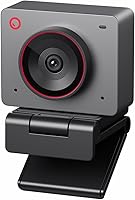
The Logitech C920e is a 1080p webcam for individual work calls, with autofocus, automatic light correction, two microphones and a flip-up privacy screen. Its fixed 78° view suits a desk setup where you want room to show nearby items.
On this page (10 sections)
- What does the Logitech C920e offer?
- How does the C920e's fixed view affect framing?
- How should you set up the C920e?
- What should you expect from the microphones?
- How does the privacy screen work?
- How does the Logitech C920e compare with alternatives?
- How does the C920e handle dim rooms?
- What common C920e buying mistakes should you avoid?
- How can you care for and use the webcam well?
- Should you buy the Logitech C920e?
The Logitech C920e is a 1080p webcam for everyday work calls, with autofocus, automatic light correction, two microphones and a flip-up privacy screen. Its fixed 78° view fits one person while leaving room to show nearby items.
It suits a simple laptop or monitor setup, especially if you want a visible way to cover the lens between meetings. If you need 2K video, adjustable framing or a USB-C connection, another webcam may fit better.
What does the Logitech C920e offer?
The C920e combines 1080p video and a fixed 78° field of view with autofocus and automatic light correction. Its two omnidirectional microphones are designed to capture audio from up to 1 meter away.
Logitech C920e: Best for everyday work calls

- 1080p video
- 78° fixed field of view
- Autofocus and automatic light correction
- Two omnidirectional microphones
- Flip-up privacy screen
A work-focused webcam with a fixed view, two integrated microphones and a flip-up privacy screen. Its adjustable clip fits a laptop or external monitor, and a 1/4-inch thread supports tripod mounting.
Pros
- Autofocus and automatic light correction
- Privacy screen visibly covers the lens
- Two microphones capture audio from up to 1 meter away
- Zoom certified and works with popular calling apps
Cons
- Field of view is fixed at 78°
- 1080p resolution rather than 2K
- USB connection
The frame is intended for one person, with enough surrounding space to show a nearby project or object. Since you can't change its viewing angle, set the camera position before a call if you want to keep more of your room or desk outside the frame.
The adjustable clip attaches to a laptop or external monitor, and a 1/4-inch thread lets you mount it on a tripod. The C920e is certified for Zoom and works with popular calling apps such as Microsoft Teams.
Who should choose the Logitech C920e?
Choose the Logitech C920e if you want a fixed-view webcam for desk calls and a physical lens cover. It makes sense for a regular single-person setup where you don't need to change the frame from meeting to meeting.
Skip it if your calls often need a tight face-only view or a wide view of a group. The Anker PowerConf C200 vs Logitech C920 comparison covers an alternative with three software-selectable viewing angles and 2K video.
How does the C920e's fixed view affect framing?
The C920e's 78° view provides a middle ground: it can frame your face while leaving some surrounding space for a notebook or item you want to show. This is useful at a desk where you don't want a very tight crop.
A fixed angle makes camera placement part of the setup. If the webcam is too far away, more of the room may appear; if it is too close, your face can dominate the image.
Place it near eye level and check the frame before the call. The guide to mounting a webcam on a monitor explains options if the screen clip puts the camera too low or off-center.
How should you set up the C920e?
For a reliable first setup, attach the webcam securely, connect its USB cable, select it as the camera in your call app, and check the image and sound before a meeting. Confirm the frame from your usual seated position, not while leaning toward the screen.
Aim the lens near eye level and place light in front of you where practical. A bright window behind you can leave your face dark, and a desk lamp near the monitor can make the light on your face more even.
Test the microphone from your normal seat and speaking distance. The webcam setup guide for Windows and Mac walks through the basic device checks and app settings.
What should you expect from the microphones?
The two integrated omnidirectional microphones are designed to pick up your voice from up to 1 meter away. That reach suits a typical desk where you sit close to the screen.
Room noise and distance still affect how your voice sounds. A fan, hard walls or a keyboard near the camera can compete with your speech, so check a short recording in your regular seat before an important call.
A headset can be a better fit if you work somewhere noisy or want the microphone closer to your mouth. Compare the options in our guide to headsets for video calls.
How does the privacy screen work?
The C920e includes an attachable screen that flips over the lens to cover it between calls. A quick glance tells you whether the screen is covering the camera.
Make a habit of checking the cover when you finish a call, especially if the webcam stays connected. The screen is a physical barrier, so you can see its position without relying on a software indicator.
If you prefer a cover built into the webcam body, compare the best webcams with a privacy shutter. The Anker PowerConf C200 has a sliding cover, while the Logitech Brio 505 has an integrated shutter.
How does the Logitech C920e compare with alternatives?
The C920e is the best fit here for a fixed 78° frame, flip-up privacy screen and familiar 1080p setup. The alternatives make different trade-offs in framing, resolution, background effects and connection type.
| Webcam | Resolution | Framing | Privacy cover | Standout fit |
|---|---|---|---|---|
| Logitech C920e | 1080p | Fixed 78° | Flip-up screen | Everyday work calls |
| Logitech C920x | 1080p at 30 fps | No field-of-view figure provided | None | Background effects |
| Anker PowerConf C200 | 2K | 65°, 78° or 95° via software | Sliding cover | Adjustable framing |
| Logitech Brio 505 | 1080p | Auto-framing | Integrated shutter | USB-C workstations |
The C920x is the closest match if you want a similar Logitech 1080p webcam. It has autofocus, light correction and dual microphones, but no privacy shutter; it includes a three-month XSplit VCam license for background effects.
Choose the C200 if the option to change between three viewing angles and 2K video matters more than keeping a simple fixed frame. Pick the Brio 505 if your workstation uses USB-C or you want auto-framing and Show Mode.
For a feature-by-feature decision between the two closest Logitech options, read Logitech C920e vs C920x.
How does the C920e handle dim rooms?
The C920e uses automatic light correction to adjust the image to the room. That can help as lighting changes, but it doesn't replace a well-lit position.
Put light in front of you when possible and avoid sitting with a bright window behind your head. If the image still looks grainy or dark, see our guide to webcams for low light and dim rooms, which compares options built for that priority.
The Anker PowerConf C200 is an alternative to consider if low-light performance matters, alongside its adjustable framing. The C920e is a better match when fixed framing, the physical privacy screen and work calls matter more.
What common C920e buying mistakes should you avoid?
The most common mistake is buying based on resolution alone. A 1080p webcam can be enough for ordinary calls, but the C920e's fixed framing may be the wrong fit if you need to show a room, fit multiple people or crop tightly to your face.
Also check your computer's available USB port and where the webcam will sit before ordering. The C920e uses USB, and its clip is designed for a laptop or external monitor; a tripod is an option if those positions don't work for your desk.
Don't assume the built-in microphones will suit every room. They are intended for nearby speech, so a noisy space or a preference for a closer microphone may point you toward a headset instead.
How can you care for and use the webcam well?
Keep the lens clear and the privacy screen in a position that doesn't obstruct the image when you need the camera. A soft, clean cloth is a sensible way to remove dust; avoid pressing hard on the lens or leaving fingerprints on it.
Check the image after moving the webcam, changing its clip position or switching desks. Even a small change can put your face off-center or bring a distracting background into the fixed frame.
When you're finished, flip the screen over the lens and unplug the USB cable if you don't want the webcam connected. For a broader plan covering the camera and other home-call gear, see our video conferencing equipment guide.
Should you buy the Logitech C920e?
Buy the Logitech C920e if you want a straightforward 1080p webcam for one-person calls, with a fixed 78° frame, autofocus, two microphones and a visible lens cover. It suits a laptop or monitor desk where you don't need to change the view.
Choose the Anker C200 for adjustable framing and 2K, or the Brio 505 for USB-C and auto-framing. The C920x is the closer Logitech alternative if you want background effects and can do without a privacy cover.
Frequently asked questions
Is the Logitech C920e good for video calls?
The C920e suits everyday video calls if you want 1080p video, autofocus, automatic light correction and two integrated microphones. Its 78° field of view is fixed, so you can't switch to a tighter face-only view or a wider room view.
Does the Logitech C920e have a privacy shutter?
Yes. The C920e has an attachable screen that flips up or down to cover or expose the lens, so you can check its position at a glance.
If you want an integrated sliding cover, the Anker PowerConf C200 is another option to compare.
Can the Logitech C920e connect to a tripod?
Yes. The C920e has a 1/4-inch thread for tripod mounting, as well as an adjustable clip for a laptop or external monitor.
Consider a tripod if your screen position puts the camera too low or the clip doesn't suit your setup.
How is the Logitech C920e different from the C920x?
Both are 1080p Logitech webcams with autofocus, light correction and dual microphones. The C920e adds a flip-up privacy screen and has a stated fixed 78° view, while the C920x includes a three-month XSplit VCam license and has no privacy shutter.