9 Best Webcams for Video Conferencing at Home (October 2026)
The best webcams for home video conferencing include the Logitech Brio Ultra 4K for adjustable desk setups, the Insta360 Link 2C for changing positions, and the Logitech Brio 4K for Windows Hello users.
On this page (6 sections)
The Logitech Brio Ultra 4K is the best webcam for video conferencing at home for most people, thanks to its flexible view, light adjustment and dual microphones. Choose the Insta360 Link 2C if you move during calls, or the Microsoft Modern Webcam for simple Teams meetings.
A separate webcam can help when your laptop camera sits at an awkward angle, struggles with backlight or cannot show everyone who needs to join the call. Your room, computer ports and meeting habits matter as much as resolution.
For a broader home office plan, read our guide to video conferencing equipment for home offices. If your laptop camera is the main problem, compare the options in our laptop webcam guide.
Our picks at a glance
-
1

-
2

-
3
How we chose webcams for video conferencing
The best webcams for video conferencing balance clear framing, useful light controls and compatibility with the way you meet. We compared each camera’s stated resolution, field of view, focus, microphones, privacy features and platform support.
Resolution does not decide call quality on its own. Automatic exposure and focus can help keep your face clear, while a useful field of view avoids showing too much background or cutting off another person.
We also considered the kind of work each camera supports. A seated call has different needs from a lesson at a whiteboard, a product demonstration or a meeting where you want a closer eye line.
Scores reflect how each camera’s stated features fit home calls, along with buyer feedback. The picks are arranged by score, but the right choice depends on which features solve a real problem at your desk.
| Product | Best for | Resolution | Framing | Microphones | Our score |
|---|---|---|---|---|---|
| Logitech Brio Ultra 4K | adjustable desk setups | Up to 4K at 30 fps | 65°, 78° or 90° diagonal field of view | Dual omnidirectional with noise-canceling technology | 8.5 |
| Insta360 Link 2C | changing positions | 4K | Auto framing adjusts zoom and view | 8.4 | |
| Logitech Brio 4K | Windows Hello users | 4K | 65°, 78° or 90° diagonal field of view | 8.2 | |
| Dell WB7022 4K Webcam | certified work platforms | 4K | 65°, 78° or 90° view | 7.8 | |
| Microsoft Modern Webcam | USB-A Teams calls | Up to 1080p | 78° field of view | 7.8 | |
| EMEET PIXY | active presentations | 4K at 30 fps | Three-microphone array | 7.6 | |
| Logitech C930e | shared whiteboard views | 1080p at 30 fps | 90° view with pan, tilt and 4x digital zoom | 7.5 | |
| Logitech Brio 500 | desk demonstrations | 1080p | Auto framing with up to 90° width | 7.4 | |
| Center Cam V2 | on-screen eye contact | 1080p at 30 fps | 7.1 |
Which webcam is best for home video calls?
The Logitech Brio Ultra 4K is the strongest all-around choice here, while the other picks suit auto framing, eye-level placement, movement or straightforward Teams use. Match the camera’s view and connection to your desk before choosing.
Logitech Brio Ultra 4K: best for adjustable desk setups
Logitech Brio Ultra 4K: Best for adjustable desk setups
- Up to 4K at 30 fps
- Three field of view presets
- RightLight 3 exposure and contrast adjustment
- Dual noise-canceling microphones
Three field of view presets let you choose a close head-and-shoulders view or show more of the room. RightLight 3 adjusts exposure and contrast, while dual microphones provide built-in audio for calls.
Pros
- Three framing presets
- Automatic light adjustment
- Privacy shade
Cons
- 4K runs at up to 30 fps
- More features than a basic call setup needs
The Logitech Brio Ultra 4K fits home calls where you want control over the frame. Its 65° diagonal preset gives a tighter head-and-shoulders view, while 78° and 90° show more of the room.
RightLight 3 adjusts exposure and contrast to compensate for glare and backlighting. It can help when a window is behind you, though a very dark room still benefits from better lighting.
The two omnidirectional microphones use noise-canceling technology and capture audio from up to about 1.2 m away. A flip-up privacy shade covers the lens between meetings, and Windows Hello support can simplify computer sign-in.
Choose it if you want framing options, light adjustment and built-in audio in one camera. Skip it if you only need a fixed view for occasional calls and have no use for its added controls.
Insta360 Link 2C: best for changing positions
Insta360 Link 2C: Best for changing positions
- 4K video
- Auto framing
- PDAF autofocus
- Privacy switch
Auto framing adjusts the view to keep a person or group in sight. This 4K camera also has autofocus, HDR, a privacy switch and an AI noise-canceling microphone.
Pros
- Auto framing for one person or a group
- PDAF autofocus
- Privacy switch
Cons
- Not compatible with ARM-based Windows systems
- Does not support Windows Hello Face Recognition
The Insta360 Link 2C is a good fit when your position changes during a call. Its auto framing adjusts the view to keep one person or a group in sight, reducing the need to reposition the camera by hand.
The 4K camera has phase-detection autofocus, HDR and an AI noise-canceling microphone. DeskView and Whiteboard modes support calls that shift between your face and a work surface.
Link Controller software provides access to settings and features, while the privacy switch gives you a physical way to disable the camera. It works with Teams, Zoom and other major meeting software, but not with ARM-based Windows systems or Windows Hello Face Recognition.
Choose it if you stand, shift around or often bring a second person into view. Skip it if your computer uses ARM-based Windows or you prefer to set the framing once and leave it there.
Logitech Brio 4K: best for Windows Hello users
Logitech Brio 4K: Best for Windows Hello users
- 4K video
- Three field of view presets
- RightLight 3 with HDR
- Windows Hello support
This Logitech camera pairs 4K video with three framing presets and Windows Hello support. RightLight 3 with HDR adjusts the image in low light and backlit settings.
Pros
- Three field of view presets
- Windows Hello integration
- Flip-up privacy shade
Cons
- The model is described as discontinued and unsupported
- Up to 90 fps is not stated as a 4K mode
The Logitech Brio 4K pairs three view choices with Windows Hello support. Use the 65° diagonal view to keep attention on you, or switch to 78° or 90° to include more of the workspace.
RightLight 3 with HDR adjusts the image for low-light and backlit situations. Dual omnidirectional microphones suppress background sound, and a privacy shade flips over the lens when you finish a call.
Logitech describes this model as discontinued and unsupported. Confirm current compatibility and support options before choosing it for a work setup you need to keep running.
Choose it when Windows Hello and flexible framing are priorities and you have verified support for your computer. Skip it if you need a model with ongoing support or would not use Windows Hello.
Dell WB7022 4K Webcam: best for certified work platforms
Dell WB7022 4K Webcam: Best for certified work platforms

- 4K Sony STARVIS CMOS sensor
- AI auto framing
- 65°, 78° and 90° views
- Certified for Microsoft Teams and Zoom
This 4K camera offers AI auto framing, three view options and certification for Teams and Zoom. Dell says its Sony STARVIS sensor captures more light.
Pros
- AI auto framing
- Three view options
- Teams and Zoom certification
Cons
- Premium aluminum body may be more than a simple setup needs
- Confirm the cable and port fit your computer
The Dell WB7022 suits a home office that uses Teams or Zoom and needs flexible framing. It is certified for both platforms, and AI auto framing is designed to keep you centered.
You can choose 65°, 78° or 90° views and adjust brightness, sharpness, contrast and saturation. Dell says its 4K Sony STARVIS CMOS sensor captures more light, and its image processing optimizes the picture in difficult lighting.
A USB-C to USB-A cable is included, along with a lens cap and privacy cover. Check which port your computer needs and whether the cable can reach the spot where you want to mount the camera.
Choose this Dell if its platform credentials and image controls fit your work calls. Skip it if you want a simple fixed camera and will not use the additional settings.
Microsoft Modern Webcam: best for USB-A Teams calls
Microsoft Modern Webcam: Best for USB-A Teams calls

- Up to 1080p video
- 78° field of view
- HDR and True Look
- Sliding privacy shutter
A 1080p camera with a 78° view covers common home meeting needs. HDR, True Look and a sliding privacy shutter add useful controls for Teams calls.
Pros
- Certified for Microsoft Teams
- Sliding privacy shutter and status light
- Versatile mounting system
Cons
- USB-A host connection required
- No 4K video
The Microsoft Modern Webcam is a practical pick for straightforward Teams calls. It supports up to 1080p video, has a 78° field of view and connects to a host computer through USB-A.
HDR and True Look offer facial retouching, automatic light adjustment and autofocus. A sliding privacy shutter covers the lens, and an LED status light shows when the camera is on.
The mounting system can attach to a monitor, laptop, desk or tripod. Its resolution is lower than the 4K choices here, but it can be enough for regular meetings where uncomplicated setup matters more than extra detail.
Choose it if you use Teams, want a shutter and status light, and have a USB-A port. Skip it if you need 4K or your computer only has USB-C ports.
EMEET PIXY: best for active presentations
EMEET PIXY: Best for active presentations

- 4K main camera
- AI tracking and PTZ movement
- Three microphone modes
- Gesture control
The PTZ camera can pan and tilt to follow movement, which suits presentations or teaching where you stand and move. Its software also offers presets, whiteboard mode and three microphone modes.
Pros
- Pan and tilt movement
- Whiteboard mode
- Multiple microphone modes
Cons
- Field of view is locked in 4K at 30 fps
- AI tracking may lose its target during fast movement or with multiple people
The EMEET PIXY is designed for calls where you stand, present or move around. Its pan-and-tilt camera supports AI tracking, with 310° of pan and 180° of tilt to change the view as you move.
The 4K main camera uses PDAF and AI autofocus, while its software offers preset positions and whiteboard mode. The three-microphone array has live, noise-canceling and original-sound modes.
The field of view is locked in 4K at 30 fps and 1080p at 60 fps. EMEET says tracking works best with one main subject and moderate movement, so a seated, multi-person meeting may not need the PTZ design.
Choose it for teaching, product demos or presentations that involve movement. Skip it for a fixed desk call where tracking and pan-and-tilt controls would add setup without helping.
Logitech C930e: best for shared whiteboard views
Logitech C930e: Best for shared whiteboard views

- 1080p at 30 fps
- 90° field of view
- Pan, tilt and 4x digital zoom
- H.264 encoding
The 90° view gives room for a second person or a whiteboard. H.264 encoding processes video in the camera to free system bandwidth.
Pros
- Wide 90° view
- Pan, tilt and digital zoom
- H.264 encoding
Cons
- No 4K video
- The business package does not include retail software
The Logitech C930e gives you a wide 90° view for 1080p meetings. The extra room can help when a second person or a whiteboard needs to fit in the frame.
Pan, tilt and 4x digital zoom give you ways to adjust the view. H.264 encoding processes video in the camera, which is designed to free system bandwidth and support a smoother stream.
This business webcam supports 1080p at 30 fps. It does not ship with retail software, so consider whether its hardware features and compatibility suit the apps you use.
Choose it if you want a wide view for a desk or presentation. Skip it if you need automatic framing, or want software controls included with the camera.
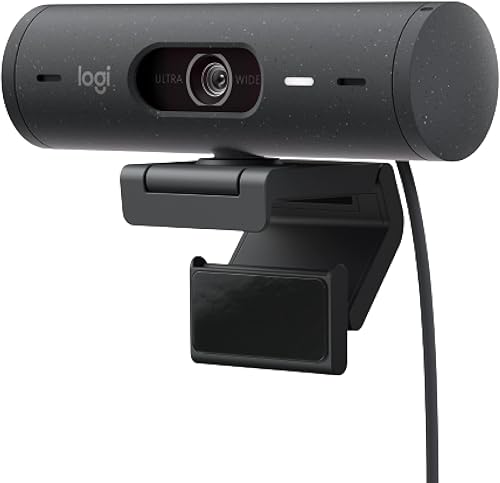
Logitech Brio 500: best for desk demonstrations
Logitech Brio 500: Best for desk demonstrations
- 1080p video
- RightLight 4
- RightSight auto framing
- Integrated privacy shutter
RightSight auto framing centers the view as you move, while RightLight 4 adjusts for low light. Show Mode lets you tilt the camera toward an object on your desk.
Pros
- Auto framing
- Show Mode for desk presentations
- Integrated privacy shutter
Cons
- 1080p rather than 4K
- The attached cable uses USB-C
The Logitech Brio 500 fits calls where you sometimes move or show something on your desk. RightSight auto framing centers the image on you, and Show Mode lets you tilt the camera toward an object or document.
Its 1080p video and RightLight 4 automatic light correction suit everyday meeting needs. Dual noise-reduction microphones filter background sound, and the integrated privacy cover rotates over the lens.
The wider view can reach 90°, leaving room for a second person. The attached cable uses USB-C, so check your computer or dock before setting it up.
Choose it if desk presentations and auto framing matter more than 4K. Skip it if you need a narrower fixed frame and will not use Show Mode.
Center Cam V2: best for on-screen eye contact
Center Cam V2: Best for on-screen eye contact

- 1080p at 30 fps
- Flexible 16 in arm
- Center-mounted camera position
- USB-C adapter included
The flexible arm places the camera near the middle of a monitor for a more direct eye line. Its fixed-focus lens and built-in mic suit quick calls, while Center Cam recommends an external mic for professional audio.
Pros
- Center-mounted eye-level position
- Works with several operating systems
- Can move to the monitor edge when not in use
Cons
- Camera remains visible on the screen during use
- Fixed-focus lens
The Center Cam V2 is made for people who want the camera near the center of the screen. Its flexible 16 in metal arm positions the lens at eye level, which can make your gaze appear closer to the person on the call.
It records 1080p at 30 fps and uses a fixed-focus lens with a 70° field of view. The built-in microphone can handle quick calls, while Center Cam recommends an external mic for professional audio.
The camera stays visible on the screen while in use, changing how you arrange meeting windows and notes. When it is not in use, you can move it to the edge of the monitor.
Choose it if eye-level placement is a priority for interviews, coaching or daily meetings. Skip it if you want an unobstructed screen or need a camera you can point and adjust freely.
How do you choose the best webcam for video conferencing?
Choose a webcam by matching its view, lighting features and connection to your desk and call habits. A camera that fits your setup is easier to use than one with features you do not need.
Is 1080p or 4K better for home video conferencing?
1080p can be enough for routine calls, while 4K offers more image detail and room to adjust framing. Your meeting app, internet connection and computer also affect what other people see.
If you are unsure whether extra resolution matters, read our guide to 1080p vs 4K webcams. For a wider look at camera options, our everyday webcam guide covers common home setups.
How wide should a webcam’s field of view be?
A narrower view keeps the frame focused on you, while a wider one can include another person, a whiteboard or more of your room. Selectable views on the Brio and Dell models make it easier to adjust the frame as your setup changes.
Check the edges of the frame before a meeting. A wide view can reveal more of the room than you intend, so move the camera or narrow its view if needed.
Do you need automatic framing?
Auto framing can help if you stand up, shift position or move between people during a call. It matters less when you sit in one place and keep the camera at a steady distance.
The Link 2C and Brio 500 offer auto framing, while the EMEET PIXY adds pan-and-tilt tracking for more movement. If you only need to center yourself once, a fixed camera can be simpler.
Should you use the webcam microphone?
A built-in microphone can simplify quick calls, but a headset may work better if you need to reduce room noise or keep the microphone close to your voice. Choose based on your room and the kind of calls you have.
Our guide to headsets for video calls can help if you want a separate audio option. For advice on arranging the camera, light and sound together, see video conferencing equipment for home offices.
Which USB connection should you check?
Check the camera’s cable and your computer’s available ports before buying. The Microsoft Modern Webcam uses USB-A, the Brio 500 has an attached USB-C cable, and several other picks include or use an adapter.
Also consider where the camera will sit. A port that works at your desk may be harder to reach if the webcam needs to mount on a shelf or stand farther from the computer.
How do you set up a webcam for a clear call?
Place the webcam near eye level and center it over the screen if you want a natural view of your face. Position a light in front of you, then adjust the frame so your head and shoulders are visible without excess background.
Connect the camera directly to the computer for the first setup and select it in your meeting app’s camera and microphone settings. If the image is cropped or the wrong camera is active, check those settings before changing the webcam’s physical position.
Set focus and framing before people join the call. For setup steps on Windows or Mac, follow our guide to setting up a webcam, then use our webcam check guide to confirm the picture and audio.
A clean lens and a steady mount also help keep the image clear. Wipe the lens gently with a clean microfiber cloth, and avoid touching it with fingers while adjusting the camera.
What common webcam setup mistakes should you avoid?
A webcam cannot make a poor camera angle or a cluttered frame disappear. Avoid placing it far below eye level, pointing it toward a bright window, or choosing a wide view that shows private parts of the room.
Do not assume that 4K will automatically look better in every call. If the app or connection limits the stream, good light, a clean lens and a well-composed frame may make a more noticeable difference.
Check which microphone your meeting app is using. A webcam microphone can be active even when you intend to use a headset, and two active audio devices can create echo.
Finally, confirm that the camera is not blocked by a privacy shutter or covered by a monitor bezel. A quick preview before the meeting can catch framing, lighting and device-selection problems.
Which webcam should you choose for video conferencing?
Choose the Logitech Brio Ultra 4K if you want flexible framing, light adjustment and built-in microphones in one camera. Pick the Insta360 Link 2C for automatic framing, the Microsoft Modern Webcam for simple Teams calls, or the Center Cam V2 when eye-level placement is your main concern.
For a moving presentation, choose the EMEET PIXY; for a wide shared view, consider the Logitech C930e. Before you buy, check your operating system and USB port, then see our shortlist of webcams for Microsoft Teams meetings.
Sources
Our top 3 picks at a glance
-
1
-
2
-
3
Frequently asked questions
Is 4K worth it for home video calls?
4K can make sense if you want a detailed image, use a camera for more than calls, or need room to adjust the frame. A 1080p webcam can be enough for routine meetings, especially when your call app or connection limits the stream.
Choose based on your framing needs and computer setup, not resolution alone.
Do I need a webcam with a microphone?
A built-in microphone is convenient for quick calls, but a headset or separate mic may suit you better if you need closer, more consistent audio. The Brio Ultra 4K and Brio 500 have noise-reduction features, while Center Cam recommends an external mic for professional audio.
See our guide to webcams with built-in microphones for more options.
What field of view is best for video conferencing?
A narrower view keeps attention on one person, while a wider view can include another person or more of a room. Several picks here offer selectable views, including 65°, 78° and 90° options.
Set the frame in your webcam software, then check what appears behind you before a call.
Will these webcams work with Microsoft Teams?
Most are described as compatible with major calling apps, and the Dell WB7022 and Microsoft Modern Webcam have specific Teams credentials. The Insta360 Link 2C supports Teams but is not compatible with ARM-based Windows systems.
Check operating system and port compatibility before buying, especially if you use an ARM-based computer.