9 Best Webcams for Laptops With a Weak Camera (October 2026)
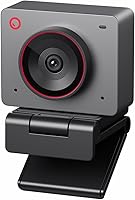
The best webcams for laptops with weak cameras include the Anker PowerConf C200 for dim home offices, the Insta360 Link 2C for group framing, and the OBSBOT Meet 2 for mobile 4K calls.
On this page (6 sections)
- Which webcams are the best webcam for laptop upgrades?
- What should you check before choosing a laptop webcam?
- How do you set up an external webcam on a laptop?
- What webcam setup mistakes can make the picture worse?
- How did we choose these webcams for laptops?
- Which webcam should you choose for a laptop with a weak camera?
The best webcam for laptop users with a weak built-in camera is the Anker PowerConf C200 for 2K video, low-light correction and adjustable framing. If your priority is 4K, consider the Insta360 Link 2C; for reliable 1080p calls, the Logitech C920x is a simpler fit.
An external webcam helps when your built-in image looks soft, dim or too tightly framed. The right choice depends on your lighting, computer ports, meeting habits and whether you want a physical privacy shutter.
For dim rooms, see our guide to webcams for low light and dim rooms. If you're choosing a camera partly for its audio, compare webcams with built-in microphones.
Our picks at a glance
-
1

-
2

-
3

Which webcams are the best webcam for laptop upgrades?
The Anker PowerConf C200 is the best all-around fit for a weak laptop camera because it combines 2K video, low-light correction and adjustable framing. The other picks suit specific needs, including 4K detail, portability, meeting platforms and privacy.
Anker PowerConf C200: Best for dim home offices
- 2K video
- 65°, 78° or 95° viewing angles via software
- Low-light correction
- Built-in privacy cover
The 2K resolution and low-light correction address two common limits of built-in laptop cameras. Software lets you choose among three viewing angles.
Pros
- 2K video
- Low-light correction
- Three viewing angles
Cons
- Changing the viewing angle uses software
- USB-C cable connection
The PowerConf C200 is a practical upgrade if your laptop camera struggles in a dim home office. It offers 2K video and low-light correction, and AnkerWork software lets you choose a 65°, 78° or 95° view to include your face or more of the room.
Dual microphones with AI noise cancellation and a sliding privacy cover round out the everyday meeting features. It works with Windows 7 or later and macOS 10.11 or later.
Choose it if you want a visible step up from a basic built-in camera without adding 4K features. Skip it if you don't want to use software to change the viewing angle, or if you need a 4K image.
Insta360 Link 2C: Best for group framing
- 4K video with HDR
- 1/2 in sensor
- Auto framing
- Easy-access privacy switch
This 4K webcam adds HDR, auto framing and a privacy switch for buyers who want more than a basic laptop camera. Its Link Controller software provides access to advanced settings.
Pros
- 4K with HDR
- Auto framing
- Privacy switch
Cons
- Not compatible with ARM-based Windows systems
- Not compatible with Windows Hello Face Recognition
The Insta360 Link 2C suits buyers who want 4K video, HDR and auto framing. Its 1/2 in sensor and phase-detection autofocus support detail and focus, while auto framing adjusts the view to keep one person or a group in sight.
It has an easy-access privacy switch, an AI noise-canceling microphone and Link Controller software for advanced settings. It isn't compatible with ARM-based Windows systems or Windows Hello Face Recognition.
Choose it if your laptop supports it and you want framing that can adjust as people move. Skip it if you mainly need a simple camera for routine calls and won't use 4K or the software controls.
OBSBOT Meet 2: Best for mobile 4K calls
- 4K video
- 1/2 in sensor
- AI framing and autofocus
- Dual noise-canceling microphones
A compact body, 4K video and AI framing suit laptop users who move between workspaces. It connects over USB-C and includes dual microphones.
Pros
- Compact and lightweight
- AI framing and autofocus
- Dual microphones
Cons
- Advanced features use OBSBOT Center software
- May get hot during use
OBSBOT Meet 2 brings 4K video and AI framing in a compact webcam weighing 40.5 g. Its 1/2 in sensor, autofocus and dual noise-canceling microphones make it suited to calls in more than one workspace.
It connects through USB-C, and OBSBOT Center software opens additional settings. The camera may get hot during use.
Choose Meet 2 if portability, 4K and automatic framing all matter. Skip it if your laptop lacks a suitable USB-C connection and you don't have an adapter, or if basic video calls don't need its extra features.
Acer 4K Webcam: Best for USB-A laptops

- 4K video
- Sony 1/2 in sensor
- PDAF autofocus
- Magnetic privacy cover
The all-metal webcam combines 4K video with PDAF autofocus and a magnetic privacy cover. Its included USB-A adapter supports more laptop ports.
Pros
- 4K video
- PDAF autofocus
- USB-A adapter included
Cons
- Check whether your laptop has a suitable USB port
- No wireless connection
Acer's 4K Webcam pairs a Sony 1/2 in sensor with PDAF autofocus and two noise-reduction microphones. The magnetic privacy cover snaps over the lens, and a USB-A adapter comes in the box.
The body is all metal, and it works plug and play with Windows, Mac and ChromeOS. Its USB-C to USB-A connection makes it a practical choice for a laptop with USB-A, but check the included cable against your available ports.
Choose it if you want 4K, a physical cover and a USB-A adapter. Skip it if you want a wireless webcam or your laptop can't use the included connection.
Logitech C920x: Best for everyday calls

- 1080p video at 30 fps
- Autofocus and light correction
- Stereo audio with dual microphones
- No privacy shutter
The C920x offers 1080p video, autofocus and light correction for a simple upgrade from a weak built-in camera. Its dual microphones capture stereo audio.
Pros
- 1080p video at 30 fps
- Autofocus and light correction
- Dual microphones
Cons
- No privacy shutter
- Not a 4K webcam
The Logitech C920x is a straightforward external webcam for buyers who want dependable 1080p calls. It records Full HD video at 30 fps and has autofocus, light correction and stereo audio from dual microphones.
It connects over USB and works with Windows 11. There is no privacy shutter, so unplug it or use a separate cover when you want the lens blocked.
Choose the C920x if your calls don't require 4K and you'd rather keep the setup simple. Skip it if a built-in shutter or USB-C connection is a must.
Microsoft Modern Webcam: Best for Teams meetings

- 1080p video
- HDR and auto light adjustment
- 78° field of view
- Integrated privacy shutter
This webcam pairs 1080p video and auto light adjustment with Microsoft Teams certification. Its shutter and status light help you check the camera's privacy state.
Pros
- Certified for Microsoft Teams
- HDR and auto light adjustment
- Privacy shutter and status light
Cons
- Host PC needs USB-A
- No 4K video
The Microsoft Modern Webcam is a good fit for Teams users who want 1080p video, HDR, True Look and automatic light adjustment. Its 78° field of view suits a centered, single-person laptop setup.
A sliding shutter and LED status light make the camera's privacy state easier to check. You can mount it on a laptop, monitor, desk or tripod, but the host PC needs USB-A.
Choose it when Teams is your main meeting app and your laptop has USB-A. Skip it if your laptop has only USB-C ports or you want 4K.
OBSBOT Meet Flip: Best for frequent travelers

- Foldable design with integrated stand
- 4K video and HDR
- AI auto framing and PDAF focus
- Folding triggers sleep mode
The foldable body and integrated stand make this a portable option for laptop users who work in several places. Folding the webcam triggers sleep mode for physical privacy.
Pros
- Foldable body with integrated stand
- 4K video and HDR
- Lightweight at 37.7 g
Cons
- Advanced meeting tools may not suit every buyer
- USB-C connection
The OBSBOT Meet Flip is built for a laptop setup that moves. Its foldable shape and integrated stand pack away together, and folding it triggers sleep mode.
It captures 4K video with HDR and includes AI auto framing, PDAF focus and dual microphones. At 37.7 g, it's light to carry, and it connects over USB-C.
Choose Meet Flip if you travel between workspaces and want a stand that folds with the camera. Skip it if your webcam stays in one place and you don't need its meeting tools or 4K video.
Logitech Brio 305: Best for certified platforms

- 1080p video
- USB-C connection
- Privacy shutter with indicator light
- Certified for Zoom, Microsoft Teams and Google Meet
Brio 305 is a 1080p choice for common meeting platforms, with a rotating shutter and visible camera indicator. Its attached USB-C cable avoids a separate cable choice.
Pros
- Certified for Zoom, Teams and Google Meet
- Privacy shutter and indicator
- Attached USB-C cable
Cons
- Fixed focus
- No 4K video
Logitech Brio 305 provides 1080p video over an attached USB-C cable. It's certified for Zoom, Microsoft Teams and Google Meet, and its rotating privacy shutter has an indicator light.
Fixed focus keeps the feature set simple, while auto light correction and a noise-reduction microphone support everyday calls. Logitech says the webcam uses at least 48% recycled plastic, depending on its color.
Choose Brio 305 if your meeting platforms are among those certifications and you want an easy-to-check shutter. Skip it if you need autofocus, 4K video or a USB-A connection without an adapter.
Lenovo Performance FHD: Best for Windows Hello

- 1080p video
- Windows Hello face recognition
- 95° lens and 4x digital zoom
- Sliding privacy shutter
This 1080p webcam adds Windows Hello face recognition, a wide 95° lens and a sliding shutter. Check your laptop's compatibility if you plan to use the login feature.
Pros
- Windows Hello face recognition
- 95° lens and 4x digital zoom
- Dual microphones
Cons
- Windows Hello feature may not fit every laptop setup
- No 4K video
The Lenovo Performance FHD is a 1080p option with Windows Hello face recognition and a sliding privacy shutter. Its 95° lens and 4x digital zoom offer a wider view and zoom range than a typical fixed laptop camera.
It connects with USB-C and includes a USB-A adapter. The webcam also has dual microphones and supports several mounting options, including top-of-monitor and tripod placement.
Choose it if Windows Hello login matters alongside video calls, and confirm your computer supports the feature. Skip it if you want a simple camera and don't need face login, the wider view or zoom.
What should you check before choosing a laptop webcam?
Match the camera to your room and laptop ports before comparing headline resolutions. A higher-resolution camera can't fix poor lighting, a blocked port or a lens positioned at an unflattering angle.
How much resolution does the best webcam for laptop calls need?
For everyday calls, 1080p is a sensible choice when you want clear video without prioritizing 4K. The C920x, Microsoft Modern Webcam, Brio 305 and Lenovo Performance FHD all offer 1080p.
Consider 4K if you want more image detail or features such as auto framing, and your computer and meeting setup can make use of it. Compare the practical tradeoffs in our 1080p vs 4K webcam guide.
Does low-light correction help a laptop webcam?
Low-light correction can improve the image when your room is dim or unevenly lit. The Anker PowerConf C200 has low-light correction, and the Logitech C920x has HD lighting adjustment.
Start by facing a window or placing a light in front of you. That often gives your camera a clearer, more even view without changing the webcam or increasing resolution.
Which ports and cables should you check?
Check your laptop for USB-A and USB-C ports, then match them to the webcam cable or adapter. Meet 2 and Brio 305 use USB-C, while the Microsoft Modern Webcam requires USB-A on the host PC.
Some models include adapters, such as the Acer 4K Webcam and Lenovo Performance FHD. Confirm that the included connection fits your computer before buying, especially if it has only USB-C ports.
How wide should a laptop webcam's view be?
Choose a view that shows the people and space you need without bringing in distracting background clutter. Anker's software offers 65°, 78° and 95° angles; the Microsoft webcam has a 78° view, and Lenovo's lens is 95°.
For a solo call, center the camera and keep the background within the frame you want. A wider view helps when another person or more of your workspace needs to appear.
Do you need a physical webcam shutter?
A physical shutter or cover lets you block the lens between calls. The Anker C200, Microsoft Modern Webcam, Acer 4K Webcam, Brio 305 and Lenovo Performance FHD include a cover or shutter.
The Logitech C920x has no built-in shutter. If physical privacy matters, choose another model or unplug the C920x when you finish using it.
How do you set up an external webcam on a laptop?
Set up a webcam by connecting it, selecting it in your call app and checking the frame before a meeting. That quick check catches the most common setup problems: the laptop still using its built-in camera, the wrong microphone selected or an awkward camera angle.
First, attach the webcam near the top of the screen or use a stable stand. Keep it close to eye level, point it toward your face and check that the mount is secure before adjusting the laptop screen.
Connect the camera to a compatible port. Use an included adapter where needed, and connect USB-C models to a port that supports the camera's connection.
Open your video app's device settings and select the external camera. If you want to use the webcam's microphones, select those as the input too; otherwise, choose the headset or microphone you normally use.
Preview the image before the call. Adjust the camera angle, lighting and framing, then close extra windows or apps that might be using the camera.
For step-by-step instructions, see our guide to setting up a webcam on Windows or Mac. To check the image and sound before joining, follow our webcam pre-call check.
What webcam setup mistakes can make the picture worse?
A camera upgrade can still look poor if the lens is misplaced or the room is too dark. Check the whole setup before deciding that the webcam itself is the problem.
Avoid placing the camera far below eye level, where it points upward at your face. A centered position close to eye height makes the frame easier to control.
Don't sit with a bright window directly behind you. The light can make your face appear dark, so turn toward the window or add soft light in front.
Remember to select the new camera in the meeting app. A connected webcam won't help if the software continues using the built-in lens.
Don't assume that 4K automatically improves every call. If the app, connection or display doesn't use the extra detail, a 1080p webcam may be a more practical fit.
Finally, check the background and view width before a call. A 95° view may show more than you intend, while a narrow angle can crop out someone sharing your workspace.
How did we choose these webcams for laptops?
We compared resolution, low-light features, framing, connection type and privacy options against the needs of someone upgrading a weak laptop camera. The picks cover common situations, from routine 1080p meetings to portable 4K setups.
We included webcams with different ports and privacy features so you can match one to your laptop and habits. To plan an entire home setup, see our guide to video conferencing equipment for home offices.
Which webcam should you choose for a laptop with a weak camera?
Choose the Anker PowerConf C200 for 2K video, low-light correction and adjustable framing at a sensible level of complexity. Pick the Logitech C920x if you need simple 1080p calls, or the Insta360 Link 2C if your compatible laptop can use 4K and auto framing.
For frequent travel, compare the OBSBOT Meet 2 and Meet Flip. If you need a Teams-focused model, a physical shutter, USB-A compatibility or Windows Hello, choose the specific webcam above that matches that requirement, then check your laptop's port and app settings before the first call.
Our top 3 picks at a glance
-
1
-
2
-
3
Frequently asked questions
Can an external webcam improve a weak laptop camera?
Yes. An external webcam gives you a separate camera for calls, with features such as higher resolution, autofocus or low-light correction depending on the model.
Connect it to a compatible port and select it in your meeting app.
Check the picture before your next call.
Is 4K better than 1080p for laptop video calls?
4K captures more detail, but it doesn't guarantee a better call by itself. Your meeting app, internet connection, lighting and screen affect the result.
A 1080p webcam may be enough for regular meetings, while 4K gives you more resolution to work with when your setup supports it.
Where should you place a webcam on a laptop?
Place the webcam near the top of the laptop screen and close to eye level. Center it with your face and check that the camera shows the amount of room you want.
If its clip doesn't fit your screen, use a stable stand or mount.
Do laptop webcams need special software?
Many USB webcams work when connected, while some features need the brand's software. Anker's viewing-angle controls use software, and Insta360 provides Link Controller for advanced settings.
Check that your computer supports the features you want before choosing.
Can an external webcam work with a laptop USB-C port?
Yes, if the webcam's connection and your laptop port are compatible. Some models use USB-C, while others connect through USB or include an adapter.
Check the cable and port combination before buying, especially if your laptop has only USB-C ports.