9 Best USB-C Webcams for Laptops and Desktops (October 2026)
The best USB-C webcams include the Logitech MX Brio 4K for image controls, the Anker PowerConf C200 for adjustable framing, and the Insta360 Link 2 for room presenters.
On this page (5 sections)
The Logitech MX Brio 4K is the best USB-C webcam for buyers who want detailed video and flexible image controls. The Anker PowerConf C200 is a practical 2K alternative, while the Insta360 Link 2 and OBSBOT Meet 2 add framing features for people with different call habits.
A USB-C webcam connects through a modern reversible plug, but the connector alone doesn't determine video quality, framing, or compatibility. Start with your computer’s ports, then decide whether you need higher resolution, automatic framing, a privacy control, or a built-in microphone.
For a broader desk plan, see our guide to video conferencing equipment for home offices. If you want to understand what an integrated mic can do, our guide to webcams with built-in microphones covers the tradeoffs.
Our picks at a glance
-
1

-
2

-
3

Which USB-C webcam fits your setup?
The right USB-C webcam depends on your call environment and how much control you want over the image. These picks include cameras for detailed video, movement, desk demonstrations, managed office setups, and straightforward meetings.
Logitech MX Brio 4K: Best for image controls
- 4K at 30 fps or 1080p at 60 fps
- USB-C to C cable
- Built-in privacy cover
- Show Mode
Choose the MX Brio for 4K video, fine image controls, and a cover that blocks the lens between calls. Show Mode lets you tilt the camera down to share notes or sketches.
Pros
- 4K at 30 fps and 1080p at 60 fps
- Fine controls for lighting and white balance
- Show Mode and a rotating cover
Cons
- A USB-C connection is needed
- Advanced controls require Logitech software
Logitech MX Brio 4K is the strongest fit if you want 4K at 30 fps or 1080p at 60 fps. Its larger pixels and AI-enhanced image features are designed to improve face visibility and detail in difficult light.
Fine Controls let you adjust ISO, shutter speed, tint, and vibrance, or leave the camera in Auto mode. Dual beamforming microphones reduce background noise, and Show Mode lets you tilt the camera down to share notes or sketches.
The rotating cover blocks the camera between meetings. It connects by USB-C and works with Windows, macOS, Chrome OS, or Linux; Logitech lists certifications for Zoom, Teams, Chromebook, Google Meet, and Streamlabs.
Choose it if you’ll use image adjustments, higher resolution, or desk sharing. Skip it if you want a simple 1080p camera for routine calls and won’t use the controls.
For setup help, see our guide to setting up a webcam on Windows or Mac.
Anker PowerConf C200: Best for adjustable framing
- 2K resolution
- 65°, 78°, or 95° viewing angles
- Built-in privacy cover
- Dual microphones
The C200 combines 2K video with three software-selectable viewing angles. Its sliding cover and dual microphones suit a desk setup used for regular calls.
Pros
- Three selectable viewing angles
- 2K resolution
- Sliding privacy cover
Cons
- Viewing angle changes use software
- Compatibility details name Windows and macOS
The Anker PowerConf C200 suits calls where you want to choose how wide the camera frames the room. Its software offers 65°, 78°, and 95° viewing angles, so you can show mostly your face or include more of the space.
It records at 2K resolution and has dual microphones with AI noise cancellation. The built-in cover slides over the lens when you want privacy, and the included cable is USB-C.
Anker specifies compatibility with Windows 7 or later and macOS 10.11 or later. The adjustable field of view depends on AnkerWork Software, so check that the software supports your computer before relying on those controls.
Choose the C200 if adjustable framing and a physical cover matter more than 4K. Skip it if you want movement tracking or rarely adjust your framing.
Our guide to webcams for low light and dim rooms can help if room lighting is your main concern.
Insta360 Link 2: Best for room presenters
- 4K video with HDR
- AI tracking with physical pan and tilt
- DeskView and Whiteboard modes
- Automatic privacy mode
The Link 2 physically pans and tilts to follow movement, with DeskView and Whiteboard modes for presentations. It includes a USB-C cable and USB-C to A adapter.
Pros
- Physical AI tracking
- DeskView and Whiteboard modes
- Automatic privacy mode
Cons
- Not compatible with ARM-based Windows systems
- Windows Hello Face Recognition is unsupported
Insta360 Link 2 is for people who move around while presenting or speaking. Its base pans and tilts to track movement, while DeskView and Whiteboard modes support sharing a desk or board.
The camera captures 4K video with HDR and uses phase-detection autofocus. It also offers gesture and smartphone controls, plus a privacy mode that tilts the camera down after 10 seconds without activity.
The package includes a USB-C cable and a USB-C to USB-A adapter. Insta360 says the camera is not compatible with ARM-based Windows systems or Windows Hello Face Recognition, so check that limitation if either applies to your setup.
Choose Link 2 when active tracking and presentation modes solve a real need. Skip it if you sit in one place and want a camera with fewer features to manage.
OBSBOT Meet 2: Best for compact 4K

- 4K video
- AI framing and autofocus
- Single USB-C connection
- Dual noise-canceling microphones
Meet 2 pairs a compact design with 4K video, AI framing, and a single USB-C connection. Its small size also suits a camera you may carry between work locations.
Pros
- Compact 40.5 g design
- AI framing and autofocus
- Single USB-C connection
Cons
- AI features may require OBSBOT Center software
- OBSBOT says the camera may get hot during use
OBSBOT Meet 2 brings 4K video and AI framing in a compact camera. It connects with a single USB-C cable, and OBSBOT says its AI adjusts framing and focus for one person or a group.
Dual omnidirectional microphones include noise reduction, with controls available through OBSBOT Center software. The camera weighs 40.5 g, which may suit a laptop bag or a work setup that moves between rooms.
OBSBOT notes that the camera may get hot during use and says this is normal. Consider that if you plan to keep it running through long meetings or streaming sessions.
Choose Meet 2 if you want a small 4K camera with software-controlled framing. Skip it if you want a privacy shutter or don't need AI framing.
For a closer look, read our OBSBOT Meet 2 review.
Logitech Brio 500: Best for desk demonstrations
- 1080p video
- Auto light correction and auto-framing
- Show Mode
- Attached USB-C cable
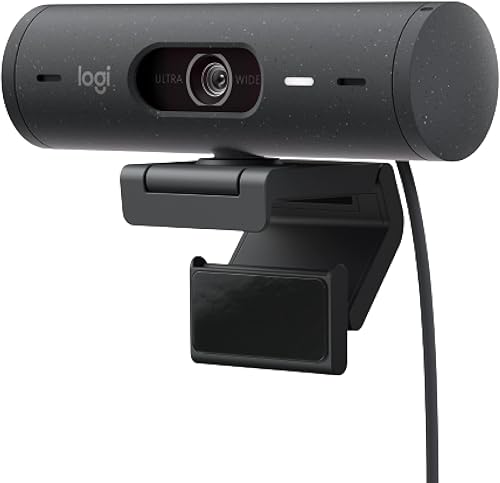
Brio 500 focuses on everyday video calls, with auto light correction, auto-framing, and Show Mode. Its attached USB-C cable keeps setup straightforward for a compatible port.
Pros
- Auto light correction
- Show Mode for desk objects
- Privacy cover
Cons
- Maximum video resolution is 1080p
- Cable is attached
Logitech Brio 500 keeps video calls straightforward with 1080p resolution and an attached USB-C cable. RightLight 4 adjusts to lighting, while RightSight auto-framing keeps you centered when you move.
Show Mode lets you tilt the camera toward a desk object, and the rotating cover blocks the lens between calls. Its dual noise-reduction microphones are designed to filter background sound, and Logi Tune provides camera adjustments.
Choose Brio 500 if you want meeting features and desk sharing without prioritizing 4K. Skip it if you need a detachable cable or a USB-A adapter.
Confirm that your device has USB-C, since the cable is attached.
Logitech Brio 501: Best for guided framing

- 1080p video
- Auto light correction and auto-framing
- Show Mode
- Rotating privacy cover
Brio 501 offers the same practical call features as Brio 500, including auto-framing, Show Mode, and a rotating privacy cover. Pick it when you want those tools in a 1080p camera.
Pros
- Auto-framing
- Show Mode
- Rotating privacy cover
Cons
- Maximum video resolution is 1080p
- Use Logi Tune for framing and image adjustments
Logitech Brio 501 offers 1080p video with auto light correction and auto-framing. Like Brio 500, it has Show Mode, dual noise-reduction microphones, and a rotating privacy cover.
Use Logi Tune to adjust framing, color, and image resolution. Its stated 90° field of view can give you room for another person or a wider scene during a call.
Choose Brio 501 if you want those meeting controls in a USB-C camera. Skip it if you need 4K or prefer not to use software for framing and image adjustments.
If comparing closely related models, see what changed between the Logitech Brio 505 and Brio 500.
OBSBOT Meet Flip: Best for foldaway travel

- 4K video with HDR
- Foldable design with integrated stand
- AI auto-framing
- USB-C cable and USB-C to A adapter
Meet Flip folds for privacy and has an integrated stand, which suits a portable setup. It pairs 4K video with AI framing and includes a USB-C to USB-A adapter.
Pros
- Foldable privacy design
- 37.7 g weight
- USB-C to USB-A adapter included
Cons
- Folded sleep mode is the privacy control described
- Some AI meeting features may depend on software
OBSBOT Meet Flip suits travel setups where folding the camera away matters. Its compact design has an integrated stand, and folding it triggers sleep mode for physical privacy.
It captures 4K video with HDR and uses AI auto-framing and phase-detection autofocus. The dual microphones support directional or omnidirectional pickup, and the included USB-C to USB-A adapter gives you another connection option.
OBSBOT also describes AI meeting tools such as transcription and summaries. Check that the software features you want are available for your setup before choosing the camera.
Choose Meet Flip if portability and fold-away privacy are priorities. Skip it if you want a basic stationary webcam and won't use its folding design or AI tools.
For other laptop options, see our webcams for laptops with weak built-in cameras guide.
Logitech Brio 305: Best for managed offices

- 1080p video
- USB-C cable
- Privacy shutter with indicator light
- Certified for Zoom, Teams, and Google Meet
Brio 305 is a simple 1080p option with a shutter and indicator light. Logitech Sync and Logi Tune support remote software and firmware management.
Pros
- Shutter has a visible camera-active indicator
- Certified for Zoom, Teams, and Google Meet
- At least 48% recycled plastic in graphite
Cons
- Fixed focus
- Logi Tune is not available for ChromeOS
Logitech Brio 305 is a simple 1080p camera for managed work setups. Its shutter has a visible indicator light when the camera is active, and Logitech Sync and Logi Tune support remote software and firmware management.
The webcam has an attached USB-C cable and is certified for Zoom, Microsoft Teams, and Google Meet. Logitech says the graphite version uses at least 48% recycled plastic, excluding electronic components, cables, and packaging.
Brio 305 uses fixed focus, so it offers fewer focus options than autofocus models here. Pick it for straightforward meetings and deployment controls rather than flexible framing.
Skip it if you want to move around or change focus distance.
Lenovo Performance FHD: Best for Windows Hello

- 1080p video
- Windows Hello face recognition
- 95° lens and 4x digital zoom
- Sliding privacy shutter
Lenovo's webcam combines 1080p video with Windows Hello face recognition, a 95° lens, and a sliding shutter. Its included cable connects to USB-C or USB-A ports.
Pros
- Windows Hello face recognition
- 95° lens and 4x digital zoom
- Dual microphones
Cons
- Windows Hello is a Windows-specific feature
- Confirm your computer supports the required connection
Lenovo Performance FHD is the only pick here that combines Windows Hello face recognition with a 1080p webcam. It also has a 95° lens, 4x digital zoom, dual microphones, and a sliding privacy shutter.
The package includes a USB-C to USB-A cable, which can help with computers that lack a USB-C port. Lenovo describes top-of-monitor and tripod mounting options, plus pan, tilt, and lens rotation.
Windows Hello is the main reason to choose this model, so confirm your computer and Windows setup support the feature. Pick it if face login and flexible mounting matter; skip it if you use another operating system or only need a basic call camera.
How should you choose a USB-C webcam?
Choose a camera by matching its connection, resolution, framing, privacy, and software needs to your daily calls. Decide which features would change how you work, then avoid paying attention to extras you would leave turned off.
Does your computer have a compatible USB-C port?
Check your computer’s ports before choosing a USB-C camera. USB-C describes the connector shape, while the camera still needs a compatible data connection and any software features you plan to use must support your operating system.
Some models include an adapter or cable for USB-A computers. The Link 2, Meet Flip, and Lenovo Performance FHD include USB-C to USB-A connection options, which can help if your computer lacks USB-C.
The Brio 500 has an attached USB-C cable, so check for the right port before buying. For a model with an adapter, confirm that the adapter is available and that the port is convenient for your desk layout.
Do you need 4K, 2K, or 1080p?
Choose resolution based on how you use video, not the largest number alone. The MX Brio, Link 2, Meet 2, and Meet Flip offer 4K video, while the Anker C200 offers 2K and the Brio 500, Brio 501, Brio 305, and Lenovo Performance FHD offer 1080p.
A higher-resolution camera may be useful for detailed streaming, recording, or cropping, but a video call app, network connection, display, and settings also affect what viewers see. For ordinary face-to-face meetings, 1080p can be enough.
The MX Brio can also capture 1080p at 60 fps, which may suit buyers who value smoother motion. For a fuller comparison of resolution tradeoffs, read our 1080p vs 4K webcam guide.
Will auto-framing or tracking help?
Auto-framing helps keep you centered when you shift position, while physical tracking follows movement across more of a room. Link 2 pans and tilts to follow you, and Meet 2, Meet Flip, Brio 500, and Brio 501 offer forms of automatic framing.
These features suit standing presentations, shared workspaces, or calls where you move. If you sit at a fixed desk, choose a camera based on image quality and connection instead of paying extra attention to framing controls you may not need.
Some controls use software or gestures. Check that the controls fit your operating system and that you can position the camera where its movement or framing will be useful.
Which privacy control will you use?
A physical cover or shutter blocks the lens when you want a direct visual check. The MX Brio, C200, Brio 500, Brio 501, Brio 305, and Lenovo Performance FHD have a cover or shutter.
Link 2 tilts down after inactivity, while Meet Flip enters sleep mode when folded. These can suit users who want the camera to move into a resting position, but a physical cover is easier to verify at a glance.
Think about your routine between meetings. If the webcam stays on your monitor, choose a control you can reach and check without moving the camera.
Do you need a built-in microphone?
Built-in microphones can simplify a desk setup, but their presence doesn't guarantee they suit every room. The listed models include microphones, and several add noise-reduction features or directional and omnidirectional pickup options.
A headset can give you a more controlled audio setup, especially in shared rooms or where keyboard and room noise are distracting. Read our guide to headsets for video calls if clear speech matters more than keeping the desk free of another device.
How do you set up a USB-C webcam?
Most USB-C webcams use a simple cable connection, but you should confirm the computer, app, and camera settings before an important call. A short setup check helps catch the wrong camera selection, poor framing, or an adapter issue.
- Choose the mounting position. Center the camera near eye level and make sure the view includes your face and the amount of background you want. A high or low position can make the angle feel awkward even if the camera is sharp.
- Connect the cable directly. Plug the webcam into a compatible USB-C port, or use the included USB-A adapter or cable if your computer needs it. If the camera does not appear, reconnect it and try another compatible port.
- Select the camera in your call app. Open its video settings and choose the external webcam by name. A computer can detect a camera while an app continues to use the built-in one.
- Set framing and light. Adjust the camera’s position before changing digital framing. Face a light source where possible, and avoid a bright window directly behind you.
- Check sound separately. Select the microphone you intend to use and make a short audio check. A webcam microphone and a headset microphone appear as separate choices in many call apps.
- Confirm privacy behavior. Open the physical cover before a call, or unfold a camera that sleeps when folded. Check that the camera is active only when you intend to use it.
For more detailed instructions, follow our webcam setup guide for Windows or Mac and test your webcam before a call.
What common USB-C webcam mistakes should you avoid?
The most common mistakes are choosing by resolution alone, overlooking the connector and software requirements, and leaving framing or audio settings unchecked. A few minutes spent matching the camera to your room and computer can prevent avoidable problems.
- Assuming every USB-C plug fits your computer. Check your ports and cable options before buying, especially if you need USB-A. A connector adapter can help with fit, but it does not replace checking compatibility.
- Buying 4K for a routine call without a reason. Your video app and connection influence the image your colleagues receive. If you mostly attend standard meetings, a 1080p webcam may be a more sensible match.
- Choosing a wide view without checking the background. A wide angle can include more people or desk space, but it can also show clutter or a larger room than you want. Set the frame before your first meeting.
- Relying on auto-framing without testing the position. Framing features need a useful camera angle and space to work. A camera mounted too low or pointed at a busy background can still produce an unhelpful view.
- Ignoring software limits. Some viewing-angle and image controls require a brand’s software. Confirm operating-system compatibility before depending on those tools.
- Forgetting the microphone selection. Your computer may keep using its built-in mic after you connect a webcam. Check the app’s audio menu and listen to a short recording or call preview.
- Leaving the lens uncovered between calls. If privacy is important, make using the shutter part of your routine. A manual cover is easy to confirm; automatic movement and sleep behavior may differ by model.
Which USB-C webcam should you buy?
Choose the Logitech MX Brio if you want detailed 4K video, image controls, and Show Mode. Pick Anker’s C200 for selectable 2K framing, Link 2 if you move around while presenting, or Meet 2 for compact 4K with AI framing.
For regular 1080p calls, Brio 500 and Brio 501 add auto-framing and desk sharing, while Brio 305 keeps the setup simple for managed offices. Choose Lenovo Performance FHD when Windows Hello is a priority, or OBSBOT Meet Flip if folding the webcam away is useful.
Before you decide, check your computer’s port, the software features you plan to use, and whether your call app needs a built-in mic or a headset. For a broader comparison of cameras for home meetings, see our video conferencing webcam guide.
Our top 3 picks at a glance
-
1
-
2
-
3
Frequently asked questions
What is the best USB-C webcam for most people?
The Logitech MX Brio 4K is a strong choice if you want detailed video, image controls, and a built-in privacy cover. For 2K video with adjustable viewing angles, consider the Anker PowerConf C200.
Choose based on your computer's available port and the features you'll use.
Will a USB-C webcam work with a USB-A computer?
Some USB-C webcams include a USB-C to USB-A adapter or cable. The Insta360 Link 2, OBSBOT Meet Flip, and Lenovo Performance FHD include USB-A connection options.
Check the included cable or adapter for the model you choose, and make sure your computer has a compatible port.
Is 4K worth it for video calls?
4K can give you more image detail, but the result also depends on your call app, internet connection, display, and settings. A 1080p camera may be enough for standard meetings.
For help weighing resolution against your needs, see our guide to 1080p vs 4K webcams.
Do USB-C webcams need special software?
Many webcams work through a USB connection, while their extra controls may depend on the brand's software. Anker uses AnkerWork Software for the C200's viewing angle, and Logitech offers Logi Tune for compatible camera adjustments.
Check whether the controls you want are available on your operating system.
Are USB-C webcams better for laptops?
A USB-C webcam can be convenient when your laptop has a compatible USB-C port, especially if you want a single cable connection. It can also work with a desktop that has the right port or a suitable adapter.
For camera-specific laptop advice, see our guide to webcams for laptops with weak built-in cameras.


