9 Best Webcams for Microsoft Teams Meetings (October 2026)
The best webcams for Microsoft Teams meetings include the Logitech MX Brio 4K for detailed video calls, the Logitech C920e for fixed desk calls, and the Logitech Brio 505 for managed office teams.
On this page (8 sections)
- How we chose the best webcams for Teams
- Compare the best webcams for Teams meetings
- Which webcam is best for your Teams meetings?
- What should you check before buying the best webcam for Teams?
- How do you set up a webcam for Teams calls?
- What common webcam mistakes make Teams calls worse?
- How should you care for a Teams webcam?
- Which is the best webcam for Teams for your setup?
The Logitech MX Brio 4K is the best webcam for Teams meetings if you want 4K video, adjustable image controls and a built-in privacy cover. For everyday 1080p calls, the C920e is a simpler fit, while the Brio 505 adds auto-framing and Show Mode.
A Teams camera should suit your computer, room and meeting habits. Check the connection first, then decide whether you need 4K detail, help staying centered or a physical shutter between calls.
Our picks at a glance
-
1

-
2

-
3

How we chose the best webcams for Teams
The best webcam for Teams should match your call setup, video needs and preferred controls. We compared the stated resolutions, platform compatibility, framing features, privacy options, microphone details and mounting styles for these 9 cameras.
The top picks cover different work patterns. The MX Brio and Dell offer 4K, while the C920e, Brio 505 and other models focus on 1080p calls with practical meeting features.
Our scores reflect how well each camera's stated features fit common Teams needs. A feature only helps when it suits your desk: auto-framing matters more if you move, and 4K matters more if image detail is a priority.
Compare the best webcams for Teams meetings
The MX Brio stands out for resolution and image controls, while the C920e offers a simpler 1080p setup. Compare connection, framing and privacy at a glance, then read the picks for the trade-offs that matter at your desk.
| Product | Best for | Video | Connection | Privacy | Our score |
|---|---|---|---|---|---|
| Logitech MX Brio 4K | detailed video calls | 4K at 30 fps or 1080p at 60 fps | USB-C | Built-in rotating cover | 9.1 |
| Logitech C920e | fixed desk calls | 1080p | Attachable flip screen | 8.6 | |
| Logitech Brio 505 | managed office teams | 1080p | USB-C | Integrated shutter | 7.9 |
| Dell WB7022 4K Webcam | changeable framing | 4K | Privacy cover and lens cap | 7.8 | |
| Microsoft Modern Webcam | Teams status visibility | Up to 1080p | Sliding shutter and status light | 7.8 | |
| Logitech Brio 500 | moving presenters | 1080p | USB-C | 7.4 | |
| Logitech Brio 501 | black desk setups | 1080p | USB-C | 7.3 | |
| Logitech Brio 305 | simple work calls | 1080p | Rotating shutter and indicator light | 7.2 | |
| Center Cam V2 | eye contact calls | 1080p at 30 fps | 7.1 |
Which webcam is best for your Teams meetings?
The Logitech MX Brio is the strongest fit for 4K video and image controls, while the C920e is the straightforward choice for an individual at a fixed desk. Other models add auto-framing, a visible camera status light or an eye-level mounting position.
Logitech MX Brio 4K: Best for detailed video calls
- 4K at 30 fps or 1080p at 60 fps
- Auto exposure, white balance and autofocus
- Dual noise-reducing microphones
- Built-in privacy cover
- Certified for Microsoft Teams
A high-resolution option for Teams users who want manual image controls, a privacy cover and Show Mode for sharing notes or sketches.
Pros
- 4K and 1080p at 60 fps options
- Fine controls for lighting and color
- Show Mode and built-in cover
Cons
- 4K may be more than routine meetings require
- USB-C connection
The MX Brio suits people who want to adjust the picture instead of relying only on automatic settings. It supports 4K at 30 fps or 1080p at 60 fps, with autofocus, auto exposure, auto white balance and noise reduction.
Fine Controls let you adjust settings such as ISO, shutter speed, tint and vibrance. Use Auto mode if you prefer the camera to handle those choices.
Its dual beamforming microphones reduce background noise, and Show Mode tilts the camera down to share notes or sketches. A rotating cover blocks the lens between meetings.
Choose it if high resolution, image adjustments and desk sharing are useful in your work. Skip it if you only need a simple 1080p camera for routine calls; the C920e covers that job with fewer image controls.
Logitech C920e: Best for fixed desk calls
- 1080p video
- 78-degree field of view
- Autofocus and automatic light correction
- Two omnidirectional microphones
- Attachable privacy screen
A practical webcam for individual calls, with autofocus, automatic light correction, two microphones and a clip for a laptop or monitor.
Pros
- Works with Microsoft Teams
- Adjustable mounting clip and tripod thread
- Privacy screen included
Cons
- Fixed 78-degree field of view
- Privacy screen attaches to the camera
The C920e is a good match for a single person who sits at a desk and wants straightforward video calls. Its 78-degree fixed view frames one user with room to show nearby projects or objects.
Autofocus and automatic light correction help keep the picture clear as conditions change. Two omnidirectional microphones capture audio from up to 1 meter away, and an attachable privacy screen covers the lens when the camera is off.
The adjustable clip fits a laptop or external monitor, and a 1/4-inch thread allows tripod mounting. It works with Teams and other common calling apps.
Pick the C920e for a simple 1080p work camera with flexible mounting. Skip it if you want auto-framing or a wide choice of view angles; consider the Dell or Brio 505 instead.
For more microphone options, see our guide to webcams with built-in microphones.
Logitech Brio 505: Best for managed office teams
- 1080p video
- Certified for Microsoft Teams
- Auto-framing and Show Mode
- Dual noise-reduction mics
- Integrated privacy shutter
The Brio 505 pairs Teams certification with auto-framing, Show Mode and remote device management through Logitech Sync.
Pros
- Teams certification
- Auto-framing and Show Mode
- Integrated shutter
Cons
- USB-C cable is attached
- 1080p resolution
The Brio 505 suits an office that wants a Teams-certified camera with features for shared work. It combines auto-framing and Show Mode, so you can move during a call or tilt the camera to show a physical item.
Dual noise-reduction microphones and automatic light correction support calls straight out of the box. The integrated shutter blocks the camera, and Logitech Sync supports remote firmware and software management.
Its attached cable uses USB-C, so check that your computer has a suitable port or adapter. The camera also works with Windows, macOS, ChromeOS and other listed calling platforms.
Choose this model if you present objects, move while talking or manage cameras across an office. Skip it if you don't need those controls and prefer a basic camera for a fixed desk.
Our video conferencing equipment guide covers other gear for clearer home office calls.
Dell WB7022 4K Webcam: Best for changeable framing

- 4K video
- AI auto-framing
- 65-, 78- and 90-degree view options
- Autofocus and digital zoom
- Certified for Microsoft Teams
This 4K webcam offers three view angles, digital zoom and AI auto-framing for users who want control over how they appear in Teams.
Pros
- Three selectable view angles
- AI auto-framing
- Teams certification
Cons
- Premium 4K feature set may be unnecessary for basic calls
- Uses a separate mount
The Dell WB7022 is for people who want to set the camera's view to match the room and seating position. Its 65-, 78- and 90-degree view options give you a choice of tighter or wider framing, while digital zoom and AI auto-framing add more ways to adjust the shot.
It captures 4K video and is certified for Teams and Zoom. The camera includes a privacy cover and lens cap, plus controls for brightness, sharpness, contrast and saturation.
This model uses a separate mount, which can suit a monitor where a typical clip is awkward. Choose it if framing control and 4K are priorities; skip it if a fixed 1080p view is all your meetings need.
Microsoft Modern Webcam: Best for Teams status visibility

- Up to 1080p video
- Certified for Microsoft Teams
- HDR and True Look
- Integrated sliding privacy shutter
- LED camera status light
A Teams-certified webcam with HDR, True Look, a sliding shutter and an LED that shows when the camera is on.
Pros
- Teams certification
- Integrated shutter and status light
- Versatile mounting system
Cons
- Requires a host PC with USB-A
- Microphone details are not specified
The Microsoft Modern Webcam fits a Teams-focused desk where a visible camera status light is useful. It is Teams certified and supports up to 1080p video with a 78-degree field of view.
HDR and True Look provide facial retouching, automatic light adjustment and autofocus. A sliding shutter covers the lens, and the LED status light shows when the camera is on.
Its mounting system can attach to a monitor, laptop, desk or tripod. It requires a host PC with USB-A, so check your computer before choosing it.
Choose this camera if you want a physical shutter and a clear on-camera status indicator. Skip it if your computer lacks USB-A or if microphone details are a deciding factor.
The Brio 505 adds auto-framing and Show Mode.
Logitech Brio 500: Best for moving presenters
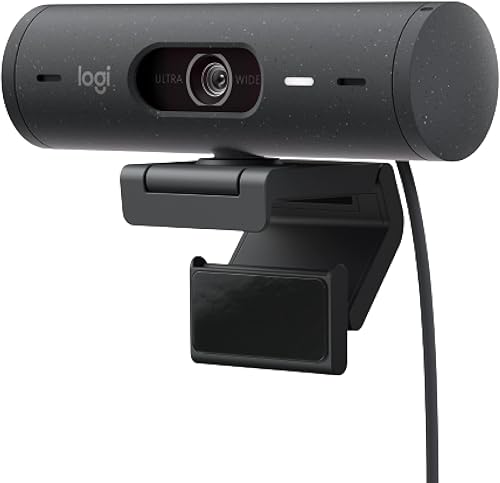
- 1080p video
- Auto-framing
- Up to 90-degree field of view
- Dual noise-reduction microphones
- Show Mode and integrated privacy cover
Auto-framing helps keep you centered as you move, while Show Mode lets you tilt the camera toward objects on your desk.
Pros
- Auto-framing
- Show Mode
- Dual noise-reduction microphones
Cons
- USB-C connection
- 1080p resolution
The Brio 500 is a strong choice for people who shift position during meetings or show items on their desk. Auto-framing can keep you centered, and Show Mode lets you tilt the camera up or down to share an object.
It records up to 1080p and offers a field of view up to 90 degrees. Dual noise-reduction microphones, automatic light correction and an integrated privacy cover round out its meeting features.
It connects over USB-C and works with Teams, Google Meet and Zoom. Logi Tune can adjust zoom, microphone mute, color and image resolution.
Pick this if you move while presenting or often share physical work on calls. Skip it if you stay seated and want a less feature-focused camera; the C920e may be enough.
Logitech Brio 501: Best for black desk setups

- 1080p video
- Auto-framing
- Up to 90-degree field of view
- Dual noise-reduction microphones
- Show Mode and integrated privacy cover
The Brio 501 offers auto-framing, a rotating privacy cover and Show Mode in a black finish.
Pros
- Auto-framing and Show Mode
- Integrated privacy cover
- Dual noise-reduction microphones
Cons
- USB-C connection
- 1080p resolution
The Brio 501 offers auto-framing and Show Mode in a black finish. It has up to a 90-degree field of view, dual noise-reduction microphones and a rotating privacy cover.
Like the Brio 500, it can center the image on you as you move and tilt down to present something on your desk. Logi Tune supports zoom, microphone mute, color and image-resolution adjustments.
Choose it if those meeting features suit your routine and you prefer a black webcam. Skip it if your only reason to consider it is the feature set, since the Brio 500 offers closely overlapping tools.
Logitech Brio 305: Best for simple work calls

- 1080p video
- Certified for Microsoft Teams
- Fixed focus
- Privacy shutter with active indicator light
- USB-C cable
A straightforward Teams-certified webcam with fixed focus, an attached USB-C cable and a privacy shutter.
Pros
- Teams certification
- Privacy shutter and indicator
- Compact design
Cons
- Fixed focus
- USB-C connection
The Brio 305 suits people who want a straightforward Teams-certified camera for 1080p calls. Its fixed-focus lens keeps the setup simple, while a rotating privacy shutter and indicator light show when the camera is active.
It has an attached USB-C cable and works with Teams, Zoom and Google Meet. Logitech Sync supports remote firmware and software updates, which can help when an office manages multiple cameras.
Choose this for a simple work camera with a physical shutter and active indicator. Skip it if you need autofocus or adjustable framing; the C920e and Dell offer more flexibility.
Logi Tune is not available for ChromeOS.
Center Cam V2: Best for eye contact calls

- 1080p video at 30 fps
- Flexible 16-inch arm
- 70-degree field of view
- USB plug-and-play with USB-C adapter
- Compatible with Teams
A center-mounted camera places the lens near the middle of the screen for eye-level framing, with a flexible arm for positioning.
Pros
- Center-screen camera placement
- Flexible arm and 6-foot total USB length
- Works with Teams
Cons
- Camera remains visible on screen while in use
- Fixed focus
Center Cam V2 puts the webcam near the center of the screen instead of at its top edge. That eye-level position is designed for people who want to look toward the person on screen while speaking.
Its flexible 16-inch arm supports different mounting positions, and the camera records 1080p at 30 fps with a fixed-focus lens and a 70-degree field of view. It works with Teams, Zoom and Google Meet on Mac, PC, Linux and Android.
The camera stays visible on the screen while in use, which can affect how you arrange the meeting window and notes. Its built-in microphone is intended for quick calls, with an external microphone recommended for professional audio.
Choose Center Cam if eye-level placement matters more than an unobstructed screen. Skip it if you prefer a conventional monitor-mounted camera or want a less visible setup.
Our guide to webcams for video conferencing at home covers more familiar options.
What should you check before buying the best webcam for Teams?
The best webcam for Teams depends on your computer port, available light and how you sit during calls. Check those three things before choosing extra features that won't change your workday.
How do you choose a webcam for Teams and your computer?
Start with the USB port on the computer where you take calls. The Brio 505, Brio 501, Brio 500 and Brio 305 use USB-C, while the Microsoft Modern Webcam requires a host PC with USB-A; the MX Brio includes a USB-C to USB-C cable.
The C920e and Dell WB7022 connect over USB, and the Dell includes a USB-C to USB-A cable. If you need help comparing port choices, see our USB-C webcam guide.
Do you need 4K or is 1080p enough for Teams?
Choose 4K if you value the MX Brio's resolution and image controls or the Dell's higher resolution and framing options. For routine calls, 1080p models such as the C920e and Brio 505 provide full HD video without making 4K the main reason to buy.
A 4K camera does not guarantee that a Teams call will display at 4K. Your computer, connection and meeting settings also affect what others see.
Which webcam framing works for your Teams calls?
A fixed view suits you if you sit in one position. The C920e uses a 78-degree view, while the Dell offers 65-, 78- and 90-degree options; the Brio 500 and Brio 501 can widen to 90 degrees.
If you stand or move while presenting, auto-framing on the Brio 505, Brio 500, Brio 501 and Dell may be more useful. If eye-level framing matters most, Center Cam V2 takes a different mounting approach.
Is a built-in microphone enough for Teams meetings?
A webcam microphone can be convenient for quick calls, and several picks here include built-in microphones. For a dedicated headset or separate microphone, choose that device in Teams' audio settings.
Our guide to headsets for video calls covers audio options.
For short meetings in a quiet room, a built-in mic may be enough. If you need a headset for longer calls or a dedicated microphone, our guide to headsets for video calls compares audio options.
How do you set up a webcam for Teams calls?
A reliable setup starts with a stable mount, a clear lens and the right camera selected in Teams. Give yourself a few minutes before a meeting to check the picture and sound.
Mount the camera at or near eye level, with the lens centered above the monitor when possible. Frame your head and shoulders, leave a little room above your head, and make sure the background doesn't distract from your face.
Connect the webcam directly to a compatible USB port, then open Teams and select it under device settings. Choose the intended microphone and speaker there too, especially if you also use a headset or a separate mic.
Adjust the room light before changing advanced image controls. Face a window or lamp when you can, and avoid placing a bright window directly behind you; this gives automatic light correction an easier scene to handle.
Run a short camera and microphone check before an important call. Our webcam setup guide for Windows and Mac walks through the computer steps, and how to test your webcam before a call covers a quick final check.
What common webcam mistakes make Teams calls worse?
The most common setup mistakes are choosing the wrong camera in Teams, placing it too low and relying on a built-in mic in a noisy room. Fixing these basics often matters more than switching to a higher resolution.
If you connect a webcam but Teams still uses the laptop camera, open device settings and select the external camera yourself. Also check the microphone and speaker selections; a good picture won't help if the call uses the wrong audio device.
A camera placed below eye level can make the angle feel awkward. Raise the laptop or monitor, or adjust the webcam mount, then check that the framing still shows your head and shoulders.
Avoid using a wide view when your room is cluttered or you sit close to the lens. A tighter frame can keep attention on you, while a wider option helps when you share the frame with another person or move around.
Don't assume the webcam microphone will suit every room. In a noisy space or a long call, a headset may give you more consistent audio; if voices echo, see how to stop echo on Zoom and Teams calls.
How should you care for a Teams webcam?
Keep the lens clean, use the privacy cover when the camera is off and store any detachable parts where they won't get lost. Simple care helps the camera stay ready for the next meeting.
Wipe the lens gently with a clean, soft cloth. Avoid pressing hard or using household cleaners directly on the lens, and follow the camera maker's care instructions if you need more than a dry wipe.
Close the shutter or cover between calls if the webcam has one. For models with an attachable cover, keep it secured and make sure it doesn't obstruct the lens when you open it.
Keep cables from hanging under tension, especially when the webcam is clipped to a monitor. If you move the camera often, check that its mount and cable still sit securely before joining a call.
Which is the best webcam for Teams for your setup?
Choose the MX Brio for 4K video and fine image controls, or the C920e for simple 1080p calls from a fixed desk. Pick the Brio 505 for auto-framing, Show Mode and office device management, or the Center Cam V2 when eye-level placement is your priority.
If you move during presentations, consider the Brio 500 or Brio 501; if you want adjustable view angles, choose the Dell WB7022. For a Teams status light and sliding shutter, the Microsoft Modern Webcam is the focused choice.
Match the camera to your computer port and room before you buy. For the rest of a clear home office setup, continue with our video conferencing equipment guide.
Our top 3 picks at a glance
-
1
-
2
-
3
Frequently asked questions
Do these webcams work with Microsoft Teams?
Yes. The MX Brio 4K, Brio 505, Dell WB7022, Microsoft Modern Webcam and Brio 305 are identified as Teams certified.
The C920e, Brio 500, Brio 501 and Center Cam V2 are described as compatible with Teams.
Connect the camera, then select it in Teams' device settings if the app doesn't choose it automatically.
Is a 4K webcam better for Teams?
A 4K webcam can give you more resolution and, on the Dell WB7022, options to adjust the view angle and zoom. Teams meetings don't always need 4K, so a 1080p camera can be a simpler fit for routine calls.
Check your computer's available USB connection and the camera's requirements before choosing.
Should I use a webcam microphone for Teams?
A webcam microphone can be convenient for quick calls, and several picks here include built-in microphones. For a dedicated headset or separate microphone, choose that device in Teams' audio settings.
Our guide to headsets for video calls covers audio options.
How should I position a webcam for Teams meetings?
Place the lens near eye level and frame your head and shoulders, with enough room to move naturally. A monitor clip works for a typical desk, while Center Cam V2 uses a flexible arm to place the camera near the middle of the screen.
For more setup advice, see our video conferencing equipment guide.


