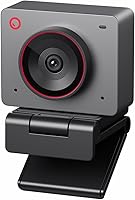
Which Webcam Brands Are Worth Buying?
The best webcam brands for different needs include Logitech, Anker, Insta360 and OBSBOT: compare the specific model’s image controls, framing, privacy features and computer compatibility before you choose.
On this page (10 sections)
- Which of the best webcam brands fits your needs?
- What should you compare before choosing a webcam brand?
- Who should choose Logitech?
- Is Anker a good webcam brand for calls?
- When does Insta360 make sense?
- Who benefits from OBSBOT?
- How do you set up a webcam for better calls?
- What common webcam buying mistakes should you avoid?
- How should you care for and use a webcam?
- Which webcam brand should you choose?
The best webcam brands to consider include Logitech, Anker, Insta360 and OBSBOT. Each has models for different needs, from straightforward meeting calls to image adjustment, auto framing and desk sharing.
A familiar name is a useful starting point, but the model matters more. Check how it connects, what controls it offers, whether your computer supports it and how it will fit your room and call habits.
Which of the best webcam brands fits your needs?
Logitech, Anker, Insta360 and OBSBOT each suit a different set of priorities in these examples. Start with the job you need the camera to do, then compare the specific model’s features and compatibility.
| Brand | Example model | Useful features |
|---|---|---|
| Logitech | MX Brio 4K | Image controls, Show Mode and a rotating privacy cover |
| Anker | PowerConf C200 | Adjustable viewing angles, low light correction and a sliding cover |
| Insta360 | Link 2C | Auto framing, gesture controls, DeskView and Whiteboard modes |
| OBSBOT | Meet 2 | AI framing, autofocus, gesture control and compact design |
These examples represent specific models, not every webcam in each brand’s range. A brand may sell simpler or more specialized cameras, so use the model’s actual features to make your choice.
For a complete desk setup, see our guide to home office video conferencing equipment. It covers the other gear that can affect how your calls look and sound.
What should you compare before choosing a webcam brand?
Compare resolution, framing, lighting support, audio, privacy and compatibility in that order of importance to you. A longer feature list is useful only when its controls solve a problem you actually have.
Resolution is one part of the picture. The MX Brio, Link 2C and Meet 2 support 4K video, while the PowerConf C200 supports 2K.
A higher resolution may help when you want a detailed image, but it does not replace good lighting, a steady mount or sensible framing.
Think about how much of your space needs to appear. A fixed view can be enough for a single person seated in one place.
Adjustable angles can help when you want to include more of a room or narrow the view, while auto framing can help keep a moving speaker or group in the frame.
Lighting features matter if you often take calls in a dim room. The C200 includes low light correction, and the MX Brio offers automatic exposure and image controls.
These tools can help manage the image, but a lamp placed in front of you can still make a practical difference.
Built-in microphones can keep a desk simple, especially for occasional calls. If voice clarity is a priority in a noisy room, compare microphone features with the option of a separate headset.
Our guide to webcams with built-in microphones explains the trade-offs.
Finally, check the connection and operating system before buying. The MX Brio and Link 2C use USB-C, and the C200 supports Windows 7 or later and macOS 10.11 or later.
Insta360 says the Link 2C does not support ARM-based Windows systems or Windows Hello Face Recognition.
Who should choose Logitech?
Choose the Logitech MX Brio if you want image adjustments, 4K video options and a way to share a desk surface on calls. Its Show Mode lets you tilt the camera down to show notes or sketches.
The camera supports 4K at 30 frames per second or 1080p at 60 frames per second. Automatic exposure, white balance, noise reduction and autofocus handle common image adjustments, while fine controls give you options such as ISO, shutter speed, tint and vibrance.
Its dual beamforming microphones use noise-reducing technology. The rotating cover blocks the camera between meetings, and the model works with Windows, macOS, Chrome OS and Linux.
Logitech also lists compatibility with Zoom, Microsoft Teams, Chromebook, Google Meet and Streamlabs.
This is the strongest fit here for someone who wants to adjust the image and sometimes share physical work. It may be more camera than you need if your calls are simple and you won’t use Show Mode, software controls or the higher resolution options.
Before you choose it, check that the USB-C connection works with your computer and that your video app supports the features you want. The 1080p at 60 frames per second option may suit smoother motion, while 4K at 30 frames per second prioritizes resolution.
For another Logitech comparison, read our Brio 505 vs Brio 500 guide. If you want to weigh an Anker webcam against a familiar Logitech alternative, see Anker PowerConf C200 vs Logitech C920.
Is Anker a good webcam brand for calls?
Choose the Anker PowerConf C200 if adjustable framing and a physical privacy cover matter more than 4K video. Its software offers 65°, 78° and 95° viewing angles.
A narrower view can keep more of your room outside the frame. A wider view can fit more people or background space, which is useful when you move between solo calls and small group conversations.
The C200 also includes dual microphones with AI noise cancellation and low light correction. It works with Windows 7 or later and macOS 10.11 or later.
Its sliding cover gives you a direct way to block the lens when the camera is not in use.
This model suits a laptop user who wants framing choices and a cover without needing a 4K camera. Skip it if you need the Link 2C’s auto framing or the MX Brio’s image adjustments and Show Mode.
Before buying, confirm that your operating system meets the compatibility requirement and that you’re comfortable using software to change the view.
If you choose a webcam with a built-in microphone, place it close enough to pick up your voice and keep it away from noise sources where possible. A headset can be a better fit when you need to reduce room noise or keep your voice private.
When does Insta360 make sense?
Choose the Insta360 Link 2C if you want auto framing, desk and whiteboard modes, or gesture and smartphone controls. Those features make it the most suited here to a call setup where you change positions or share more than your face.
The Link 2C supports 4K video and HDR, with phase detection autofocus. Its Link Controller software provides settings and features, and its AI noise-canceling microphone can help reduce unwanted background sound.
A privacy switch lets you turn off the camera view when you’re done.
Auto framing can adjust the composition to keep a person or group in view. Gesture controls and remote smartphone control offer more ways to manage framing, zoom and Whiteboard Mode.
These features are useful if you plan to use them, but they add controls to learn and are unnecessary for a fixed, face-to-camera meeting setup.
Check compatibility before choosing this model. It does not work with ARM-based Windows systems or Windows Hello Face Recognition.
If those limitations affect your computer or login setup, choose another option.
Our OBSBOT Meet 2 vs Insta360 Link 2C comparison looks at two cameras with framing and gesture features.
Who benefits from OBSBOT?
Choose the OBSBOT Meet 2 if you want a compact 4K webcam with AI framing, autofocus and gesture control. Its small size also makes it an option for a mobile work setup.
The Meet 2 uses a USB-C connection and includes dual omnidirectional microphones with noise reduction. OBSBOT Center software provides more settings, while gestures control AI framing and zoom.
Its framing feature can adjust for one person or a group.
This model suits someone who wants automatic composition and can make use of the software or gesture controls. Skip it if you only need a fixed camera for basic calls and don’t expect to use those features.
Its compact form does not remove the need to position it at a useful height and angle.
OBSBOT says the camera may get hot during use and that this is normal. If you carry it between locations, keep its cable and mounting parts together so it’s ready to set up when needed.
How do you set up a webcam for better calls?
Place the camera near eye level, connect it directly or through a compatible adapter, and check its picture and sound in your call app. A few minutes of setup can prevent a poor angle, the wrong microphone or an unexpected software issue.
Start by setting the display at a comfortable height, then place the webcam above or on the screen so the lens points toward your face. Keep the camera steady and frame your head and shoulders for a typical solo call.
For a group, widen the frame or use an adjustable view if the webcam offers one.
Connect the camera and open the app you plan to use. Select the webcam as the video source and confirm that the app uses the microphone you want.
A webcam with built-in microphones may not be selected automatically if your computer still points to a laptop microphone or headset.
Turn on the room light or place a lamp in front of you. Avoid a bright window directly behind your head, which can leave your face dark.
Use automatic image settings first, then adjust controls only if the picture needs them.
Make a short preview call or use your app’s camera preview before an important meeting. Our guides to setting up a webcam on Windows or Mac and testing a webcam before a call walk through those checks.
What common webcam buying mistakes should you avoid?
The most common mistake is choosing by resolution alone. Connection, framing, lighting, software and operating system support can matter more to your day-to-day calls.
- Buying features you won’t use: Gesture controls, auto framing and image adjustments are helpful only if they match your routine.
- Ignoring computer compatibility: Check the operating system and connection, including the Link 2C’s ARM-based Windows limitation.
- Assuming 4K fixes poor lighting: A higher resolution cannot make a dark room look well lit by itself.
- Using the wrong field of view: A wide angle may reveal more of your room than you want, while a narrow angle may exclude people.
- Forgetting privacy: A cover or switch makes it easier to block the lens when you finish a call.
- Skipping an audio check: Confirm the app has selected your preferred microphone before joining a meeting.
How should you care for and use a webcam?
Keep the lens clear, store the camera safely and use its cover or privacy switch between calls. Simple habits help preserve a clear image and prevent the camera from being left on when you don’t need it.
Dust and fingerprints can make an image look soft. Use a clean, soft cloth on the lens, and avoid pressing hard or using harsh cleaners.
When moving the webcam, disconnect it by holding the connector rather than pulling the cable.
Use the supplied mount or a stable position, and avoid letting the cable tug the camera out of place. For a camera that tilts down to show a desk, check that the writing or object is in frame before sharing it with others.
Close the privacy cover or switch the camera off when the meeting ends. For a closer look at physical covers, see whether you need a webcam privacy cover.
Which webcam brand should you choose?
Pick the Logitech MX Brio for image controls and desk sharing, the Anker C200 for adjustable viewing angles, the Insta360 Link 2C for specialized modes, or the OBSBOT Meet 2 for compact AI framing. Match the model to your computer and the features you’ll use most.
If you mainly join ordinary calls, the C200’s adjustable view and privacy cover are practical priorities. Choose the MX Brio when you want image adjustments and Show Mode, the Link 2C when auto framing and desk or whiteboard modes matter, and the Meet 2 when compact size and gesture controls are a better fit.
For more options chosen specifically for meetings, see our guide to the best webcams for video conferencing at home. If resolution is your main concern, compare 1080p and 4K webcams before deciding.