OBSBOT Meet 2 vs Insta360 Link 2C: Which to Buy? (October 2026)
For obsbot meet 2 vs insta360 link 2c, choose the Meet 2 for its 40.5 g travel-friendly body and gesture controls, or the Link 2C for HDR, desk modes and a physical privacy switch. Both offer 4K video, autofocus and a 1/2-inch sensor.
On this page (8 sections)
- OBSBOT Meet 2 vs Insta360 Link 2C: which fits your setup?
- What separates their image features?
- Which framing controls will you actually use?
- How do privacy and computer compatibility affect the choice?
- Which microphone features matter for calls?
- How should you set up and care for either webcam?
- Who should skip each webcam?
- Which webcam should you buy?
For obsbot meet 2 vs insta360 link 2c, the Meet 2 suits a light, portable setup, while the Link 2C adds HDR, desk modes and a physical privacy switch. If you present while moving around a room, the Insta360 Link 2 is the more suitable option because it physically pans and tilts.
All three cameras offer 4K video, autofocus and a 1/2-inch sensor. The practical choice comes down to where you place the camera, how you want to control framing and which privacy or presentation features you’ll use.


OBSBOT Meet 2 vs Insta360 Link 2C: which fits your setup?
Choose the Meet 2 for travel and gesture controls, or the Link 2C for its privacy switch and desk presentation modes. Both are fixed webcams with automatic framing, so neither physically follows you around a room.
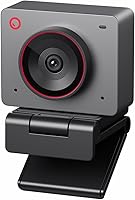
The Meet 2 weighs 40.5 g and is described as ultra compact. Its AI framing adjusts the composition for one person or a group, while gestures let you start or stop framing and control zoom.
The Link 2C offers HDR, autofocus, auto framing, DeskView and Whiteboard modes. Its physical privacy switch gives you a direct way to disable the camera, and its software supports remote smartphone control.
The Link 2 is a useful third choice for people who step away from their desk during a presentation. Its camera physically pans and tilts to track movement, which sets it apart from the Meet 2 and Link 2C.
What separates their image features?
All three offer 4K video, autofocus and a 1/2-inch sensor; HDR is specified for the Link 2C and Link 2. That shared foundation means your choice can center on the controls and modes you need.
OBSBOT describes the Meet 2’s sensor as a 1/2-inch CMOS sensor with a larger light-sensitive area intended to capture more light. Insta360 highlights HDR and low-light performance for both Link models, and specifies phase-detection autofocus for the Link 2C.
Video quality also depends on camera position, light direction and the settings available in your call or streaming app. Place the camera near eye level and add light in front of you if your face appears dim.
If you’re deciding whether 4K matters for your calls, our guide to 1080p vs 4K webcams explains the trade-offs. For more room-lighting advice, see our guide to webcams for low light.
OBSBOT Meet 2 vs Insta360 Link 2C for low light: what should you know?
Both Insta360 models specify HDR and low-light performance, while the Meet 2 emphasizes its sensor’s light capture. Those features are useful points of comparison, but your room lighting and framing still shape the picture.
Avoid a bright window directly behind you, since the difference between the background and your face can make the image harder to balance. A lamp facing you can help even out the light on your face.
HDR is designed to handle scenes with a wider range of brightness. If you often switch between bright and dim rooms, choose the camera features that match those conditions and keep a small light nearby.
Which framing controls will you actually use?
The Meet 2 offers gesture control for framing and zoom, the Link 2C adds smartphone control, and the Link 2 physically tracks movement. Pick based on how you present and whether you want to reach for a keyboard or phone.
With the Meet 2, a raised-hand gesture opens or closes AI framing, and a pointing gesture controls zoom. OBSBOT Center software offers further settings for personalizing the camera.
The Link 2C and Link 2 support gestures for auto framing or tracking, zoom and Whiteboard Mode. You can also use a smartphone to control them, with Link Controller software for desktop adjustments.
DeskView and Whiteboard modes give the Link models ways to show a desk or board as well as your face. They may help when a call includes a close view of materials or a presentation surface.
When is the Insta360 Link 2 a better choice than the Link 2C?
Choose the Link 2 when you need the camera to physically pan and tilt as you move. The Link 2C can reframe the image, but it doesn’t physically turn to follow you.
The Link 2 also includes HDR, autofocus, gesture controls, DeskView and Whiteboard modes. It tilts down after 10 seconds of inactivity or can be adjusted manually for privacy.
If your calls happen at a desk and you prefer a manual privacy switch, the Link 2C may fit better. For more detail on the fixed model, read our Insta360 Link 2C review.
How do privacy and computer compatibility affect the choice?
The Link 2C has a physical privacy switch, while the Link 2 tilts down after inactivity. Meet 2 details don’t specify a privacy control, so consider how you prefer to manage camera access.
The Link 2C comes with a magnetic mount, recognition markers, a USB-C cable and a USB-C to USB-A adapter. The Meet 2 connects through USB-C and is described as plug and play.
Both Insta360 models are noted as incompatible with ARM-based Windows systems and Windows Hello Face Recognition. Check those limits against your computer before you choose either one.
The Meet 2 is compatible with laptops, personal computers and tablets. For practical placement advice, see our guide to mounting a webcam on a monitor.
Which microphone features matter for calls?
The Meet 2 specifies dual omnidirectional microphones, while both Insta360 models describe AI noise canceling. These built-in mics can help reduce background noise, but placement and room sound still matter.
OBSBOT says the Meet 2’s dual microphones adjust noise reduction by scene and can filter wind, keyboard typing and other ambient noise. Insta360 describes AI noise-canceling algorithms for both Link models.
Place the camera close enough to pick up your voice, and mute when you aren’t speaking in a noisy space. If you’d rather use a separate audio device, our guide to headsets for video calls covers another way to improve call sound.
How should you set up and care for either webcam?
Start by mounting the camera securely, connecting it to your computer, then checking framing, focus and microphone input in your call app. Set up the camera before a meeting so you have time to correct angle, light or audio problems.
For the Meet 2, use its USB-C connection and open OBSBOT Center if you want to adjust additional features. For the Link 2C, use the included mount and choose Link Controller settings that match your usual framing and presentation style.
Keep the lens clear and avoid touching it while positioning the camera. If you move the webcam between work spots, hold it by the body and check the mount and cable before starting a call.
A common setup mistake is placing the camera too low or too far to one side. Adjust it toward eye level and center the view before relying on automatic framing.
Another mistake is assuming auto framing means room tracking. The Meet 2 and Link 2C can adjust composition, but the Link 2 is the option that physically pans and tilts.
Who should skip each webcam?
Skip the Meet 2 if you need a stated physical privacy switch or moving camera; skip the Link 2C if your Windows computer uses an ARM-based processor. The Link 2 is also a poor fit if you don’t need physical tracking and prefer a manual privacy switch.
The Meet 2 may get hot during use, which OBSBOT describes as normal. If you want a camera that tilts down after inactivity or has a listed privacy switch, one of the Insta360 models better matches that preference.
The Link 2C and Link 2 are not compatible with Windows Hello Face Recognition. Avoid them if that feature is essential to your computer routine, and check ARM-based Windows compatibility before buying.
Which webcam should you buy?
Pick the Meet 2 for a light webcam with gesture framing, the Link 2C for HDR and a privacy switch, or the Link 2 for physical tracking around a room. That is the clearest decision rule for obsbot meet 2 vs insta360 link 2c.
Choose the OBSBOT Meet 2 if portability matters and you want gesture controls on a compact camera. Choose the Insta360 Link 2C if you mostly sit at a desk and will use DeskView, Whiteboard or the privacy switch.
Choose the Insta360 Link 2 if you present while moving and want the camera to pan and tilt with you. For more camera options, browse our webcam guides for everyday setups, or read the OBSBOT Meet 2 review.
Frequently asked questions
Is the OBSBOT Meet 2 better than the Insta360 Link 2C?
The Meet 2 is a better fit if low weight and gesture-controlled framing matter most. The Link 2C is a better fit if you want HDR, DeskView and Whiteboard modes, remote smartphone control or a physical privacy switch.
Do the Meet 2 and Link 2C both have 4K video?
Yes. Both are described as 4K webcams with a 1/2-inch sensor and autofocus.
The Link 2C also specifies HDR, while the Meet 2 highlights light capture from its CMOS sensor.
Room lighting and your call app can affect the image you see.
Which webcam is easier to carry?
The OBSBOT Meet 2 has the clearest portability details here: it weighs 40.5 g and is described as ultra compact. The Link 2C is also compact, but no weight is given for a direct comparison.
Does the Insta360 Link 2C track movement around a room?
The Link 2C offers auto framing, which adjusts the composition for one person or a group, but it does not physically pan and tilt. The Insta360 Link 2 physically pans and tilts to follow movement, so consider it if you present while walking around.
Can I use either Insta360 webcam with Windows Hello?
No. The Link 2C and Link 2 are described as incompatible with Windows Hello Face Recognition.
Both note that they currently do not support ARM-based Windows systems.
Check your computer type and sign-in needs before choosing either model.