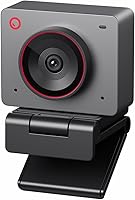
Insta360 Link 2C Review: Worth It? (October 2026)
The Insta360 Link 2C is a fixed 4K webcam for calls and streams where auto framing, HDR and a privacy switch matter. Pick the Link 2 if you need the camera to pan and tilt as you move around a room.
On this page (11 sections)
- Quick answer: who should buy the Insta360 Link 2C?
- What does the Link 2C offer for calls and streams?
- Is the Insta360 Link 2C a good fit for meetings?
- When should you choose a camera that physically tracks?
- How do its modes and controls fit a desk setup?
- What should you expect from its image and focus features?
- Is the built-in microphone enough?
- How does the privacy switch work?
- What are the drawbacks and common setup mistakes?
- How do the alternatives compare?
- How should you choose between the Link 2C and its alternatives?
The Insta360 Link 2C is a fixed 4K webcam with auto framing, HDR, autofocus and a privacy switch. It fits calls and streams where you stay near your desk but want the camera to adjust the composition.
Choose the Link 2C for software framing in a stationary setup. Choose the Insta360 Link 2 if you want the camera itself to pan and tilt as you move around.
Quick answer: who should buy the Insta360 Link 2C?
Buy the Insta360 Link 2C if you want a webcam that can frame a solo speaker or group without physically moving. Its controls and special modes also make sense if you switch between showing your face, a desk surface and a whiteboard.
Skip it if you only need a basic camera for occasional calls, if you want the webcam to follow you around a room, or if you use an ARM-based Windows computer. Windows Hello Face Recognition is also unsupported.
Insta360 Link 2C: Best for fixed desk calls

- 4K video
- 1/2-inch sensor
- HDR
- Auto framing
- Privacy switch
A compact webcam with 4K video, HDR, autofocus, gesture controls and a privacy switch. Its fixed camera suits desk use better than presentations that require movement around a room.
Pros
- 4K video with HDR
- Auto framing for one person or a group
- DeskView and Whiteboard modes
- Easy-access privacy switch
Cons
- Does not physically pan or tilt to follow movement
- Not compatible with ARM-based Windows systems or Windows Hello Face Recognition
What does the Link 2C offer for calls and streams?
The Link 2C combines 4K video with a 1/2-inch sensor, HDR and Phase Detection Auto Focus. It connects over USB, and the box includes a magnetic mount, USB-C cable and USB-C to USB-A adapter.
Auto framing adjusts the composition for one person or a group while the camera stays in place. That makes it a better match for a desk, shared table or fixed streaming setup than for a presenter who needs to walk across a room.
It also has an AI noise-canceling microphone, natural bokeh through Link Controller, and an easy-access privacy switch. These features are useful when you want camera controls and sound processing in one device, though they don't replace the control you get from a separate headset mic.
Is the Insta360 Link 2C a good fit for meetings?
The Link 2C suits meetings when you sit or stand in a defined area and want framing to adjust without moving the camera. Auto framing can help keep a solo speaker or a small group in the composition.
For a home office, first decide where the camera will sit and how many people need to fit in view. A webcam mounted too low or too far to one side can still produce an awkward angle, even when it can reframe the image.
If meetings are the main use, our guide to webcams for video conferencing at home compares different setups. You can also read about mounting a webcam on a monitor before picking a position.
When should you choose a camera that physically tracks?
Choose a moving camera if you walk around during lessons, product demonstrations or presentations. The Insta360 Link 2 physically pans and tilts to follow movement, while the Link 2C adjusts framing with the camera fixed.
That distinction matters more than the shared 4K label. If your subject stays near a desk, physical movement may add little; if your subject moves across the room, a fixed camera may not keep them centered.
The Link 2C still has DeskView and Whiteboard modes for showing a work surface or board. For a close look at a compact alternative, read our OBSBOT Meet 2 vs Insta360 Link 2C comparison.
How do its modes and controls fit a desk setup?
The Link 2C offers gesture control, smartphone control and Link Controller desktop software. Gestures can start auto framing, zoom in or out, and activate Whiteboard Mode.
These controls are most useful if you regularly change what the camera shows. For a meeting where you sit in one position and never adjust the view, they may be features you rarely use.
DeskView and Whiteboard modes can help when you want to switch from face-to-face video to a view of your desk or board. Before relying on these controls, install the software and allow time to learn the settings you plan to use.
What should you expect from its image and focus features?
The Link 2C's 4K video, HDR and PDAF autofocus are aimed at clear, focused video across calls and streams. Insta360 also describes low-light performance as a feature, but lighting and camera placement still affect what people see.
Place a light in front of you when possible, and position the camera near eye level. A higher resolution won't brighten a dark room on its own, and autofocus can't correct a camera angle that points away from you.
The natural bokeh effect is available through Link Controller. Use it when you want a softer background, then check that the effect looks appropriate for the call or stream before you go live.
Is the built-in microphone enough?
The built-in AI noise-canceling microphone is intended to filter background noise. It may suit routine calls, but microphone choice also depends on how far you sit from the camera and how noisy your room is.
If clear speech is a priority, compare the webcam mic with a dedicated headset before settling on a setup. A headset microphone sits closer to your mouth and gives you a separate audio option.
Our guide to webcams with built-in microphones covers camera-and-mic combinations. For a separate audio device, see our picks for headsets for video calls.
How does the privacy switch work?
The Link 2C has an easy-access privacy switch that gives you a direct physical control. Check where the switch sits in your setup so you can reach it when you want privacy between calls.
If you prefer a camera with a built-in shutter, compare designs before buying. Our guide to webcams with privacy shutters explains the options.
The Link 2 handles idle privacy differently: it tilts down after 10 seconds of inactivity, or you can adjust it manually. Consider which approach you'll remember and find easiest to use.
What are the drawbacks and common setup mistakes?
The main drawback is that auto framing is not physical tracking. If you expect the Link 2C to turn toward you as you walk around, choose the Link 2 instead.
A second issue is computer compatibility. The Link 2C does not work with ARM-based Windows systems and does not support Windows Hello Face Recognition, so check both points before buying.
Common setup mistakes include mounting the webcam below eye level, sitting outside the camera's useful composition, and assuming a feature will work without setting it up in Link Controller. Connect the camera, choose its position, open the software, and confirm your framing and audio in the call app you plan to use.
Don't assume the built-in mic will suit every room. Make a short call or recording in your usual space, listen for room noise, and switch to a headset if speech needs to be clearer.
For a first-time setup, follow our guide to setting up a webcam on Windows or Mac. If the image looks soft, use these steps to diagnose why a webcam looks blurry.
How do the alternatives compare?
The Link 2 is the clearest choice for a presenter who moves around the room, because it physically pans and tilts. The OBSBOT Meet 2 is a compact 4K option with AI framing, autofocus, gesture control and dual noise-canceling microphones.
OBSBOT Meet 2: Best for compact travel

A compact 4K webcam with a 1/2-inch sensor, AI framing, autofocus and gesture control. It connects over USB-C and has dual noise-canceling microphones.
Pros
- 4K video and 1/2-inch sensor
- AI framing and autofocus
- USB-C connection
- Dual noise-canceling microphones
Cons
- May get hot during use
- No privacy switch is specified
The Meet 2 weighs 40.5 g and connects with a single USB-C cable. It may suit someone who carries a webcam between locations, while its maker notes that the camera can get hot during use.
Insta360 Link 2: Best for moving presenters

A close alternative with a 1/2-inch sensor, 4K video, HDR and AI tracking. Its camera physically pans and tilts to follow movement around the room.
Pros
- Physical pan and tilt for AI tracking
- 4K video with HDR
- DeskView and Whiteboard modes
- Tilts down after inactivity for privacy
Cons
- Physical tracking may be more than a fixed desk setup needs
- Not compatible with ARM-based Windows systems or Windows Hello Face Recognition
The Link 2C Pro is another fixed-camera option, with a 1/1.3-inch sensor, auto framing and directional microphones. Its Stream Deck integration and 4K Portrait Mode are relevant to creator workflows that use those features.
Insta360 Link 2C Pro: Best for creator workflows

A fixed-camera alternative with a 1/1.3-inch sensor, auto framing and directional microphones. It also supports Stream Deck integration and 4K Portrait Mode.
Pros
- 1/1.3-inch sensor
- Directional dual microphones
- Stream Deck integration
- 4K Portrait Mode
Cons
- Not compatible with ARM-based Windows systems or Windows Hello Face Recognition
- No physical pan and tilt
How should you choose between the Link 2C and its alternatives?
Choose by how you move, what you connect, and which controls you'll use. The Link 2C is the balanced pick for a fixed desk setup; the other models make sense when a specific feature matters more.
- Choose the Insta360 Link 2C for fixed desk calls or streaming, auto framing, a privacy switch and DeskView or Whiteboard modes.
- Choose the Insta360 Link 2 if you move around while presenting and want physical pan and tilt.
- Consider the OBSBOT Meet 2 if portability, a compact design and dual noise-canceling microphones matter to you.
- Consider the Insta360 Link 2C Pro if directional microphones, Stream Deck integration or 4K Portrait Mode fit your creator workflow.
- Skip these feature-rich options if you only need a simple webcam for occasional calls and won't use 4K framing or camera controls.
Buy the Insta360 Link 2C when its fixed-camera framing, privacy switch and modes match how you work. If you move during presentations, pick the Link 2; if you're comparing compact desk cameras, start with our OBSBOT Meet 2 review and the smart cameras guide.
Frequently asked questions
Does the Insta360 Link 2C move to follow you?
No. The Link 2C adjusts its framing, but its camera does not physically pan or tilt.
If you walk around while presenting, the Insta360 Link 2 can pan and tilt to follow movement.
Does the Insta360 Link 2C have a privacy cover?
It has an easy-access privacy switch for a direct way to activate privacy. The Link 2 takes a different approach: it tilts down after 10 seconds of inactivity or can be adjusted manually.
Will the Insta360 Link 2C work with Windows computers?
The Link 2C supports Windows and Mac setups, but it is not compatible with ARM-based Windows systems. It also does not support Windows Hello Face Recognition, so check your computer and login needs before choosing it.
Is the Insta360 Link 2C good for streaming?
It suits streaming if you want 4K video, autofocus, HDR, auto framing and gesture controls. DeskView and Whiteboard modes, along with Link Controller software, add ways to adjust the view.
Choose a camera with physical tracking if you move around the room during a stream.